Configure Medication Tab
Purpose and Benefits
The Medication Tab allows the user to create new Drug Orders for the patient. Medication is referred to as Drugs in OpenMRS. It also displays the past and active medications for the patient. The screenshot below displays an instance of the same:
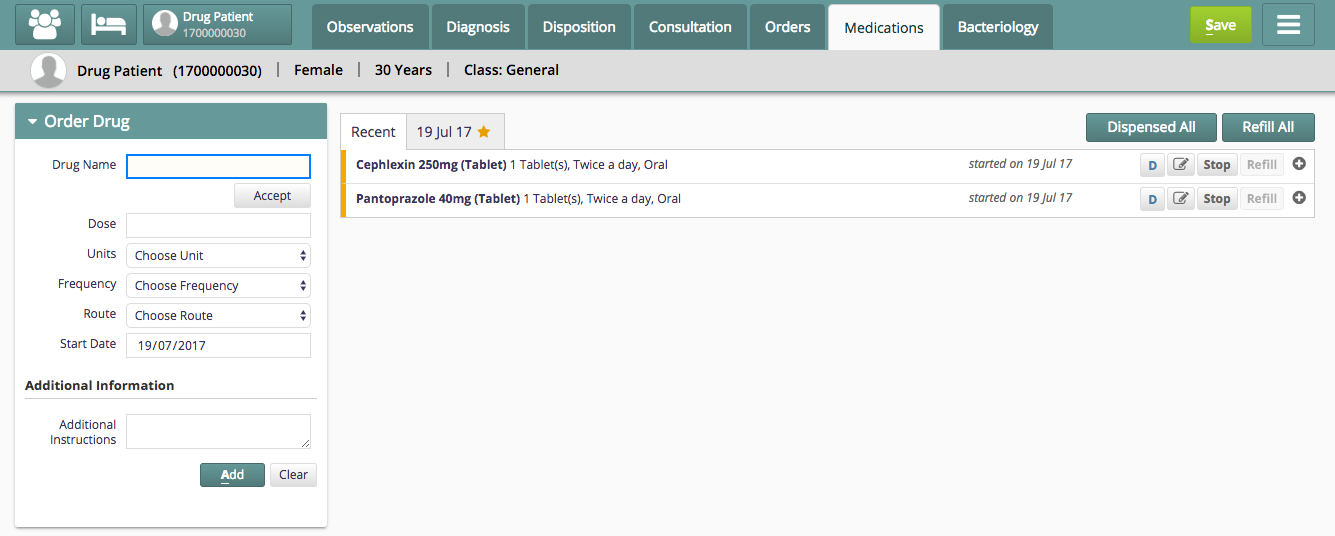
Medication Tab
Steps
Configure Medication Tab Display
"bahmniClinicalBillingTreatment": {
    "id": "bahmni.clinical.billing.treatment",
    "extensionPointId": "org.bahmni.clinical.consultation.board",
    "type": "link",
    "label": "Medications",
    "translationKey":"MEDICATIONS_BOARD_LABEL_KEY",
	"extensionParams": {
		"tabConfigName": "<tabConfigName>"
	},
    "url": "treatment",
    "icon": "fa-user-md",
    "order": 7,
    "requiredPrivilege": "app:clinical:consultationTab"
  },
Please refer to the following link to know more about this configuration: https://github.com/bahmni/default-config/blob/master/openmrs/apps/clinical/extension.json
Configure Multiple Medication Tabs
You can configure multiple medication tabs with each tab being drug specific. The name of the tab tabConfigName needs to be defined in extensionParams. Using this tabConfigName, the tab specific configurations needs to be put in medication.json. Please look at for more details. The following is example configuration that configures two medication tabs.
"bahmniClinicalBillingTreatment": {
    "id": "bahmni.clinical.billing.treatment",
    "extensionPointId": "org.bahmni.clinical.consultation.board",
    "type": "link",
    "label": "Medications",
    "translationKey":"MEDICATIONS_TAB_ONE_LABEL_KEY",
	"extensionParams": {
		"tabConfigName": "<tab1ConfigName>"
	},
    "url": "treatment",
    "icon": "fa-user-md",
    "order": 7,
    "requiredPrivilege": "app:clinical:consultationTab"
  },
  "bahmniClinicalBillingTreatment": {
    "id": "bahmni.clinical.billing.treatment",
    "extensionPointId": "org.bahmni.clinical.consultation.board",
    "type": "link",
    "label": "Medications",
    "translationKey":"MEDICATIONS_TAB_TWO_LABEL_KEY",
	"extensionParams": {
		"tabConfigName": "<tab2ConfigName>"
	},
    "url": "treatment",
    "icon": "fa-user-md",
    "order": 8,
    "requiredPrivilege": "app:clinical:consultationTab"
  }
Setup Medication Data
Please refer to to setup the medication/drug data
Advanced Configuration
Configure Medication.Json file
Please see this documentation on wiki:
Configure "dispensed" button
Check the feature guide for a general understanding of this feature
The highlighted buttons in red below are the buttons used to dispense drugs.
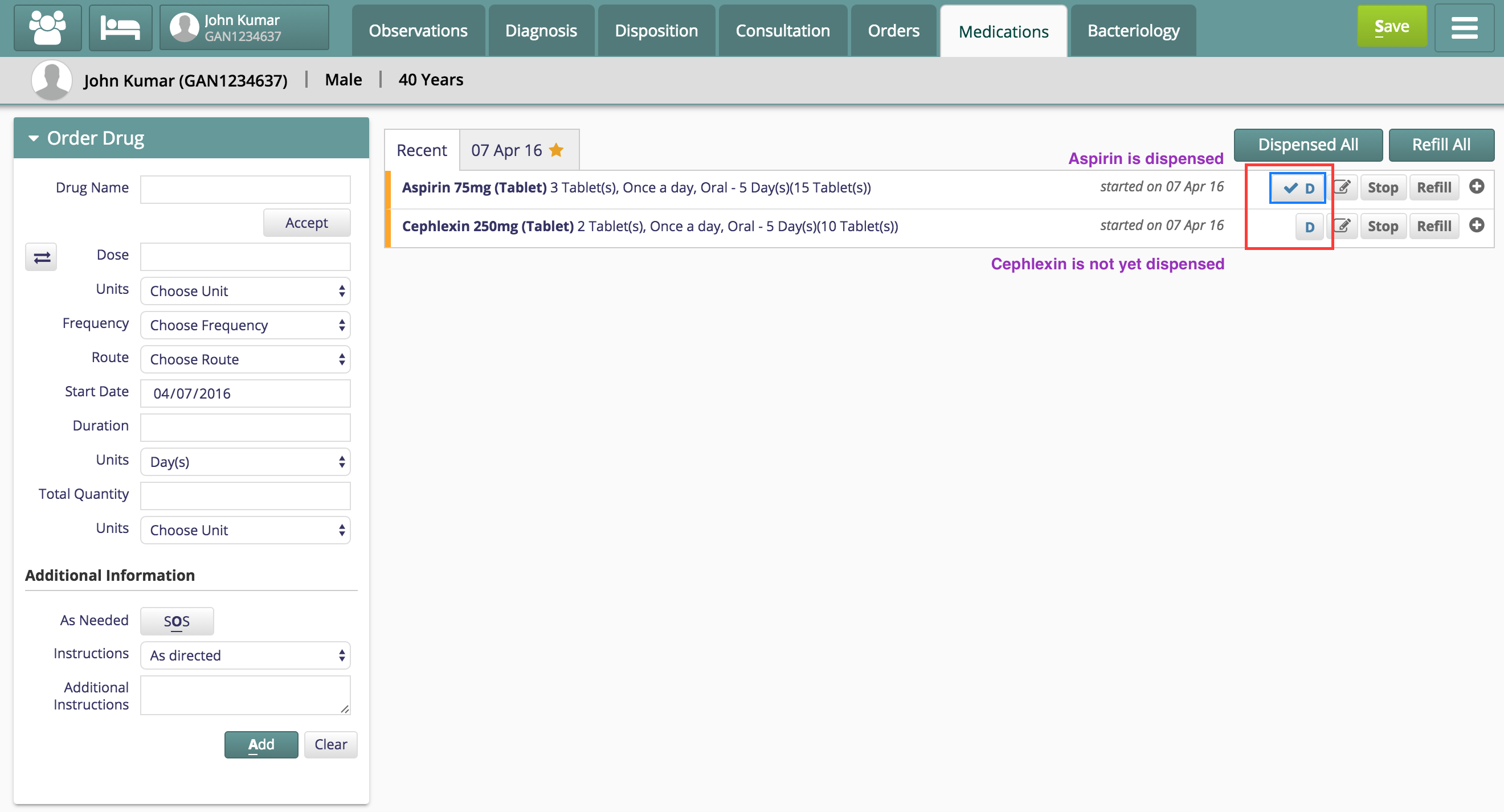
When the logged in user has the specific privilege then these buttons show up.
Add this privilege for the logged in user.
bahmni:clinical:dispenseBahmni drug order dispensing privilege
Refer to get info on how to add privilege for a logged in user.
Configure links to open quotations in ERP
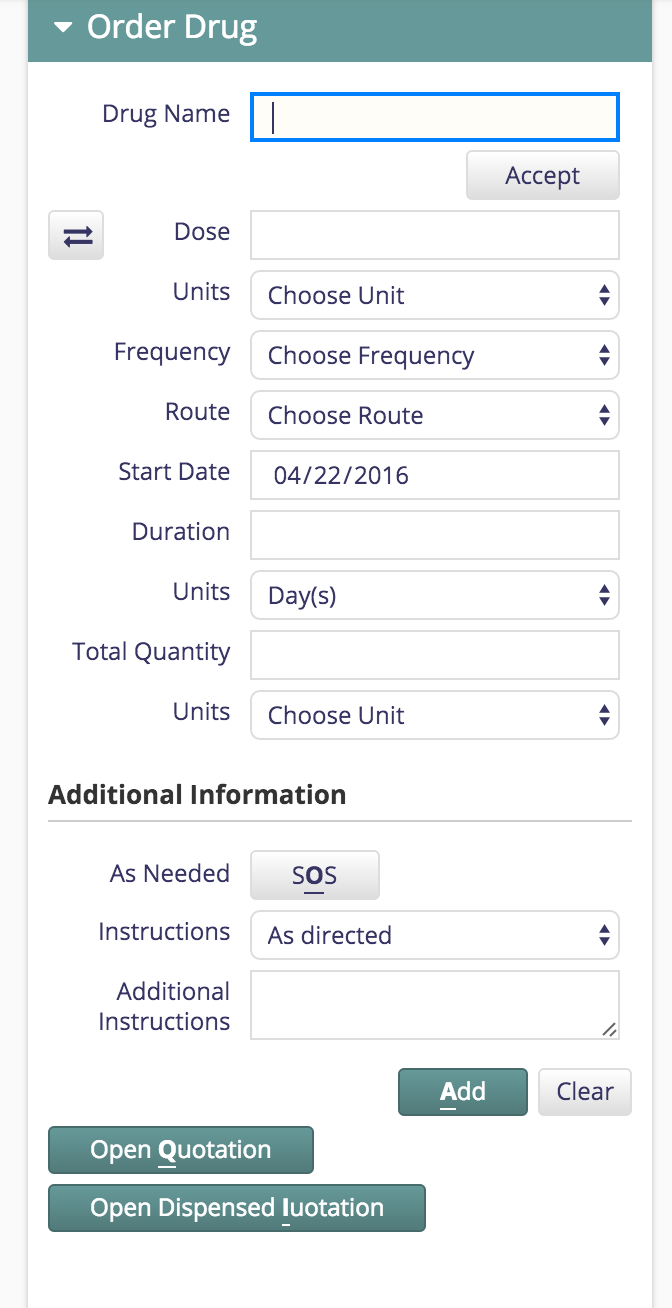
The two extra buttons "Open Quotation" and "Open Dispensed Quotation" can be configured to open a quotation for drugs which are not dispensed and a quotation for drugs which are dispensed.
"bahmniClinicalTreatmentLinks": {
    "id": "bahmni.clinical.treatment.links",
    "extensionPointId": "org.bahmni.clinical.treatment.links",
    "type": "link",
    "label": "Open <u>Q</u>uotation",
    "url": "http://192.168.33.10:8069/quotations/latest?patient_ref={{patient_ref}}&dispensed=false&location_ref={{location_ref}}",
    "shortcutKey": "q",
    "requiredPrivilege": "app:billing"
  },
  "bahmniClinicalTreatmentDispensedLinks": {
    "id": "bahmni.clinical.treatment.links",
    "extensionPointId": "org.bahmni.clinical.treatment.links",
    "type": "link",
    "label": "Open <u>D</u>ispensed Quotation",
    "url": "http://192.168.33.10:8069/quotations/latest?patient_ref={{patient_ref}}&dispensed=true&location_ref={{location_ref}}",
    "shortcutKey": "q",
    "requiredPrivilege": "app:billing"
}- The first config is for the button "Open Quotation": This opens the ERP quotations for normal orders. "url" is the link to ERP quotation. The IP of the url to be changed to the implementation server's IP.
- The second config is for "Open Dispensed Quotation". This opens the ERP quotations for the orders which are dispensed. The setting of "dispensed" flag in the url parameter to true or false opens the dispensed, non-dispensed quotations respectively.
Configure Conditional Notes Placeholder on Drug Stoppage
When a Drug is stopped on the Medication Tab, the user can select the Stop Order Reason concept from the drop down menu and by default the order reason notes will be enabled. To conditionally disable the stop order reason notes based on the stop order reason concept selected, please refer below example:
Add the condition under clinical formCondition.js for the required Stop OrderReason Concept.
For example, to enable stop order reason notes for "Other" and "Adverse event" reason concepts:
"Medication Stop Reason": function (drugOrder, conceptName) {
    if(conceptName == "Other" || conceptName == "Adverse event"){
        drugOrder.orderReasonNotesEnabled = true;
        return true;
    }
    else
        return false;
}| Key | Value | Mandatory |
|---|---|---|
| Medication Stop Reason | Conditionally enable or disable reason notes | Y |
| conceptName | Name of the concept for which the reason notes should be enabled |
Configure Free-Text Drug Ordering
Please refer to Medications for further details about this configuration.
Configure Interval to Skip Display of Stop
The Drug-o-gram or The Drug Regimen Display Control is a widget that displays all the drugs that the patient has been treated with. This gives the clinician a bird’s eye view of all of the patient’s current and past medications.
In this configuration the Drug-o-gram will not display “Stop” if a medicine is stopped and restarted the same day or the next or in a configurable time (provided in hours in the STOPING_INTERVAL_HOURS key of groovy file). is a sample groovy file which should be placed in this path bahmni-config/openmrs/treatmentRegimenExtension/TreatmentRegimenExtension.groovy
Configure Fractional Dosage



Using dosages as mixed fractions like 2¾ instead of 2.75 is possible for both uniform and variable doses by configuring the following json in the file medication.json in openmrs/apps/clinical/ directory in the configuration repo.
{
"commonConfig": {
  "doseFractions": [
    {
      "value": 0.50,
      "label": "½"
    },
    {
      "value": 0.33,
      "label": "⅓"
    },
    {
      "value": 0.25,
      "label": "¼"
    },
    {
      "value": 0.75,
      "label": "¾"
    }
  ]
},
"tabConfig": {
  "tabOne": {
  	"showDoseFractions": true
	"doseFractions": ["½","¾"]
  ]
}Screenshot

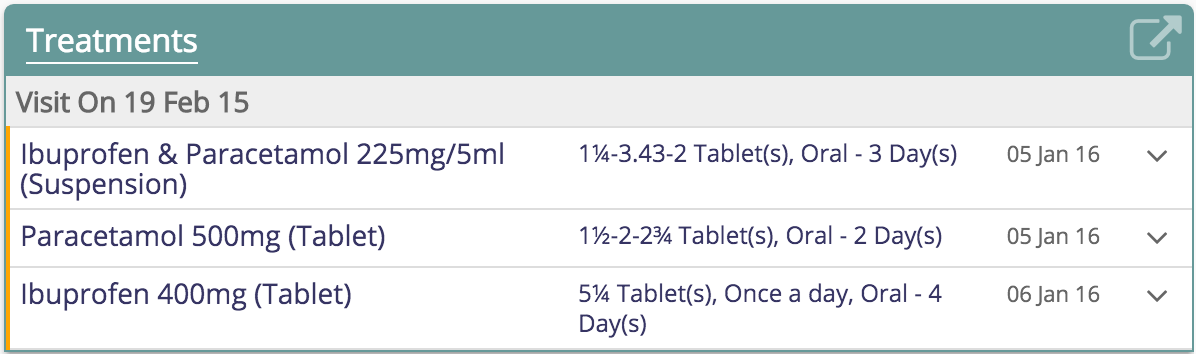


Configure Medication Display Controls
For more information on Display Controls that can be configured, please refer to .
Configure As Needed as a Checkbox

As shown in the above screenshot, in order to make the As Needed (named as PRN in this example) field into a checkbox, the following configuration can be added to the medication.json inside "inputOptionsConfig" section
Update Duration and Duration Unit based on Frequency

The config needs to be added in the medication.json file inside "inputOptionsConfig" section
Once the configuration is added, when we select that frequency, the respective duration and duration unit set in the config will be set.
Configuration to restrict Doctor from capturing medication without capturing Diagnosis
When the Doctor is in the Medications tab, if atleast one primary Diagnosis is not captured against a patient, then the doctor is restricted from prescribing a medication for the patient

Configuration to restrict Doctor from Prescribing Medication without capturing Weight
To restrict a doctor from prescribing medication for a patient without capturing the patient’s weight, the following configuration can be added in the /openmrs/apps/clinical/app.json
Here, "duration" field specifies the time limit in seconds within which the patient's weight must be recorded.
하위 문서
Bahmni Wiki · CC BY-SA 4.0