새 관찰 양식 만들기
목적과 이점
관찰 양식(템플릿)은 진료 사건 중 관찰을 미리 정의한 형식으로 기록합니다. 수술 기록 같은 일반 정보와 빈혈 같은 질환별 정보를 모두 기록할 수 있습니다.
사용자에게는 Consultation UI의 입력 양식으로 보이지만 백엔드에서는 개념 집합으로 모델링됩니다. 개념 집합의 개념을 정의·수정하고 implementation-config에서 Multiselect, Add more 등을 구성해 요소를 맞춤 설정할 수 있습니다.
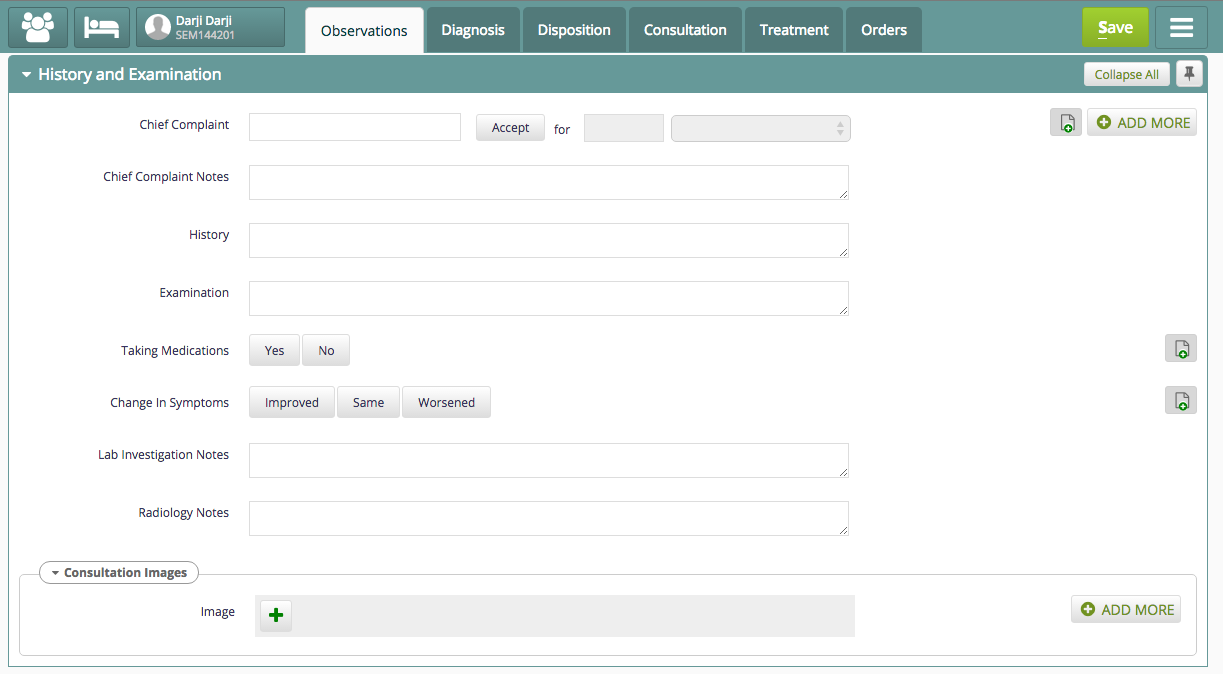
관찰 양식 화면 예시
절차
관찰 양식 추가
Bahmni에 관찰 양식을 추가하는 방법은 두 가지입니다.
1. 기존 관찰 양식을 Bahmni로 가져오기
관리 모듈의 CSV Upload 기능으로 관찰 양식을 가져올 수 있습니다.
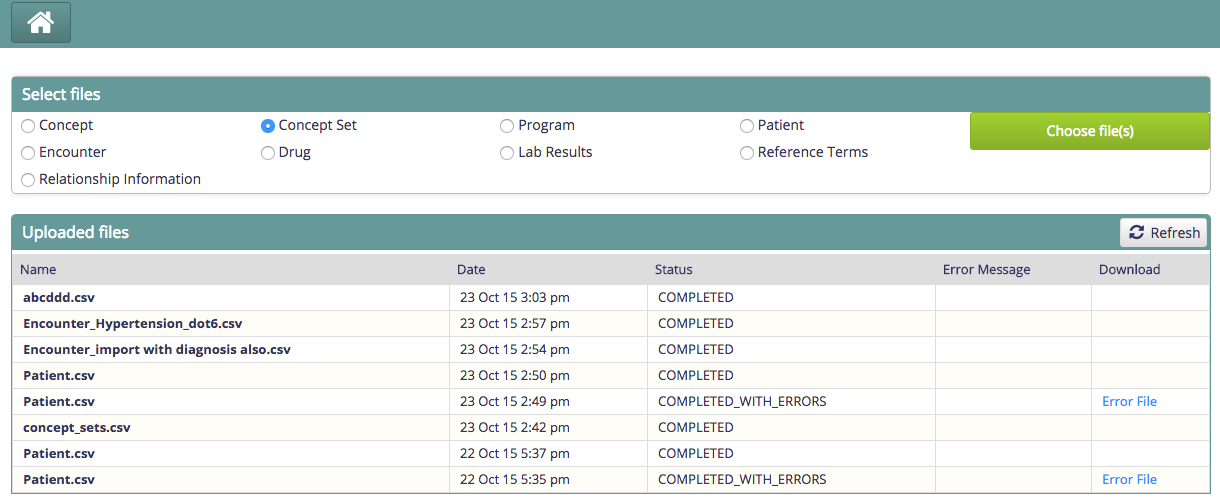
- 새 관찰 양식에 표시할 개념의 CSV를 만듭니다. 형식은 concepts.csv 예시를 참고하십시오.
- 화면에 표시할 각 필드는 개념이어야 합니다.
- 개념의 "Shortname"이 화면에 표시되며 없으면 "name"을 레이블로 사용합니다.
- 드롭다운 또는 다중 선택 개념에는 DataType "Coded"를 사용합니다.
- 가능한 답변 개념의 "name"을 answer.1, answer.2 등의 열에 지정합니다.
- 아래 concepts.csv의 "Taking Medications" 예시를 참고하십시오.
- 관찰 양식에 필요한 모든 conceptSet의 CSV를 만들고 concept_sets.csv 예시 형식을 따릅니다.
- 개념 집합의 하위 개념은 child.1, child.2 등의 열에 지정합니다.
- 예시 concept_sets.csv에는 "Chief Complaint Data"와 "Consultation Images"라는 두 개념 집합 그룹이 있습니다.
- 업로드 성공 여부를 확인합니다. 오류가 있으면 err 파일을 내려받아 수정합니다.
- 업로드 성공 여부를 확인합니다. 오류가 있으면 err 파일을 내려받아 수정합니다.
CSV 예시:
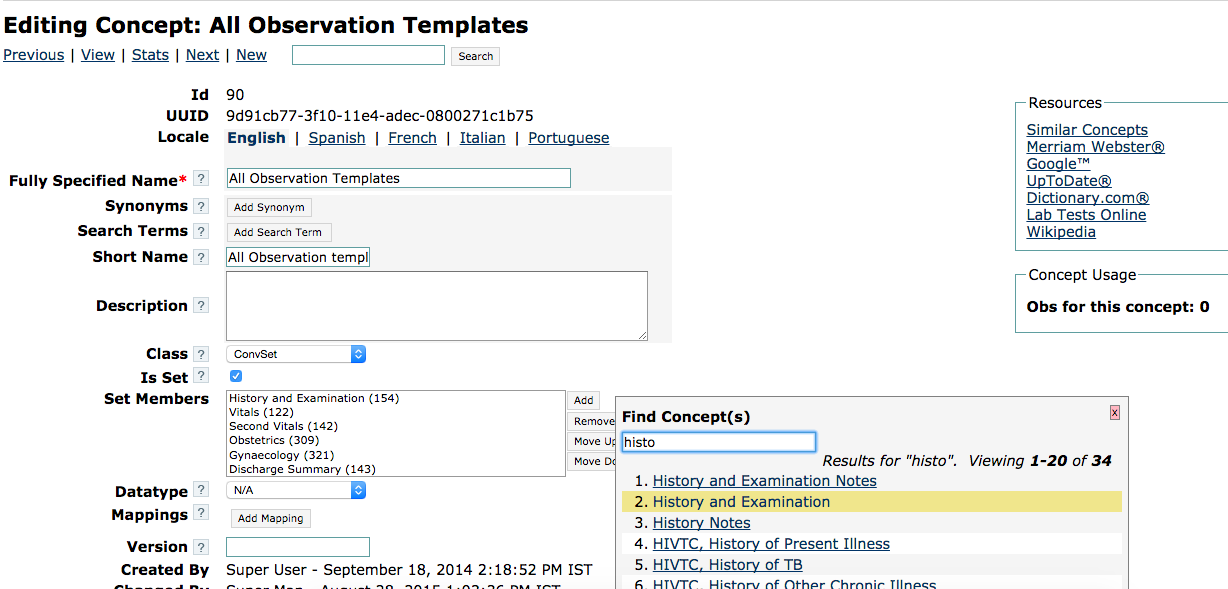
관찰 템플릿과 일반 개념 CSV 예시는 다음 위치에 있습니다.
2. 신규/기존 관찰 양식 구성
질환 템플릿 개념 집합을 구성하려면 다음 단계를 수행합니다.
- 개념은 기본 시각화를 갖지만 Bahmni는 사용자 정의 구성도 지원합니다. OpenMRS 개념 메타데이터에 직접 넣을 수 없으므로 임상 모듈 구성에 지정합니다. 아래 코드 블록을 참고하십시오.
"visitTypeForRetrospectiveEntries": "GENERAL",
"conceptSetUI": {
		"Consent scan copy" : {
                        "allowAddMore" : true
                },
		"Baseline, List of drugs taken for more than a month": {
                	"multiSelect": true
                },
		"Baseline, Disease site": {
			"multiSelect": true
		        },
		"Baseline, Patients for whom the construction of a regimen with four likely effective second-line drugs is not possible": {
                	"multiSelect": true
                },
        "Baseline, Other patients who have high risk of unfavorable outcome but who do not fit the above categories": {
                	"multiSelect": true
                },
		"Baseline, Method of MDR-TB confirmation" : {
			"multiSelect" : true
		        }
}다음 표는 개념 데이터 유형의 동작과 예시를 설명합니다.
| | Type | Example |
|---|---|---|
| 1 | Coded - Autocomplete with only coded values Usage: Use it when you have fixed set of answers for a concept | "Death Note, Primary Cause of Death": { "required": true, "answersConceptName": "Death Note, Cause, Answers", "autocomplete": true }Where, "Death Note, Cause, Answers" = Concept which has answers** |
| 2 | Coded - Autocomplete with multi select.This feature is configurable only for the coded concepts and parent of the concept shouldn't be of class "ConceptDetails" type. Default behavior will be button select. | "Fully specified name of the concept": { "autocomplete" : true, "multiSelect" : true }Example :"New Born status": { "autocomplete" : true, "multiSelect" : true } |
| 3 | Coded - Autocomplete with coded values and non-coded values | Using the example of Chief Complaints, here is the OpenMRS concept hierarchy: Chief Complaint Data (Is Set=true, class=Concept Details)Chief Complaint (DataType=Coded)Non-Coded Chief Complaint (DataType=Text)Chief Complaint Answers (DataType=Coded) You can add Chief Complaint data to a concept-set which you are using for your form to show in Observations tabAll the coded answers should be added to Chief Complaint Answers and not Chief Complaint. This is a hack as loading children when loading a concept, slows down the loading of the form."Chief Complaint Data": { "answersConceptName": "Chief Complaint Answers", "autocomplete": true, "codedConceptName": "Chief Complaint", "nonCodedConceptName": "Non-Coded Chief Complaint", "durationRequired": false, "allowAddMore" : true }If either of codedConceptName or nonCodedConceptName is not given, It will be treated as autocomplete with only coded values. The name of this configuration can be either "Chief Complaint Data" or "Chief Complaint" which is the name of <Concept Set> or <Concept Set Member whose DataType is coded>. For multiselect configuration, add the following to the config map. Setting up an Autocomplete field with coded and non coded answers, was formerly known as freeTextAutocomplete"multiSelect": true instead of "autocomplete": true |
| 4 | Coded - Dropdown with only coded values Usage: Use it when you have a smaller set of answers for a concept | "Death Note, Primary Cause of Death": { "required": true, "dropdown": true } |
| 5 | Coded - Button Select with only coded values Usage: Use it when you have a small set of answers for a concept | "Death Note, Primary Cause of Death": { "required": true, "buttonSelect": true } |
| 6 | Text - Free text type | "Chief Complaint Notes": { "conciseText": true } |
| 7 | Boolean - For Yes/No type | "Posture" : { "buttonSelect" : true } |
| 8 | Numeric - For numerical values Usage: Recommended to be configured only when the numbers would be small like number of children, pregnancies etc | "No of children" : { "stepper": true } |
| 9 | Date - For dates (without time) | |
| 10 | Datetime - For dates with time | |
| 11 | N/A - No data type Usage: This is used for concepts which are used as answer to some other concept | |
| 12 | answersConceptName | It is an optional field. If it is not configured, then the same concept's answers will be picked. Example: "Death Note, Primary Cause of Death": { "required": true, "autocomplete": true }Where, "Death Note, Primary Cause of Death" = Concept which has answers |
Bahmni에서 동영상을 관찰로 기록
절차:
- OpenMRS Concept Dictionary에서 Class='Video', datatype='Complex', handler='VideoUrlHandler'인 개념을 만듭니다.
- 해당 개념을 포함할 관찰 템플릿에 추가합니다.
- 양식에서 동영상 개념의 '+' 버튼을 눌러 파일을 엽니다.
- 동영상을 선택하고 저장합니다.
참고:
- 브라우저 재생은 mp4, ogg, webm만 지원합니다. 다른 형식은 다운로드만 가능합니다.
- 업로드 파일은 50MB 미만이어야 하며 그 이상이면 브라우저가 중단될 수 있습니다.
개념 데이터 조건
상위 개념 집합의 개념을 다른 개념값에 따라 조건부로 활성화·비활성화해 긴 양식을 더 직관적으로 사용할 수 있습니다.
아래 예에서 "Chief Complaint Notes"는 "Chief Complaint" 개념을 입력했을 때만 편집할 수 있습니다.
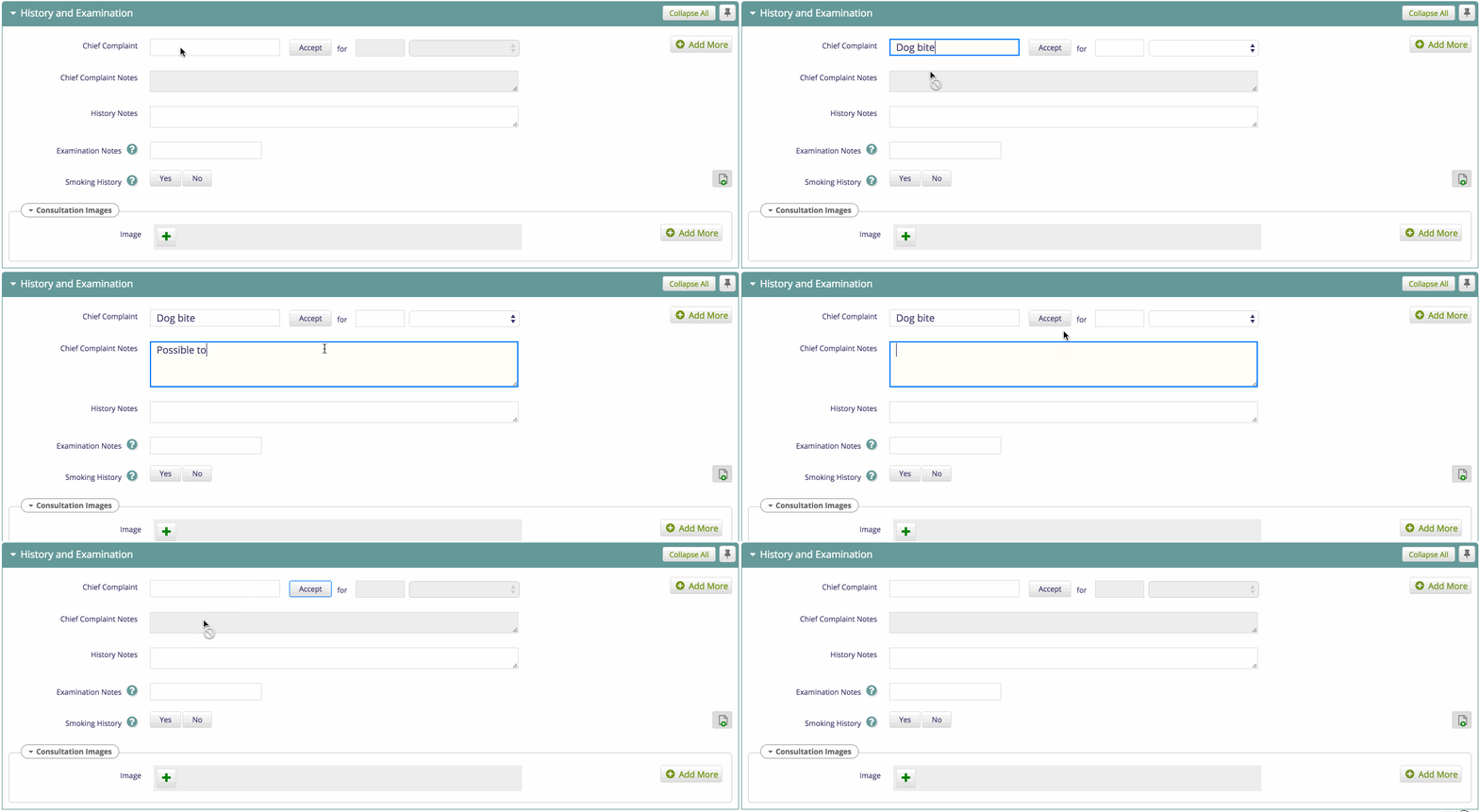
개념 조건부 활성화/비활성화
다른 개념값에 따라 개념을 활성화·비활성화하는 formConditions.js 구성은 다음과 같습니다.
// Bahmni.ConceptSet.FormConditions.rules is a map with key as the <concept name> that matches with the currently changed element in the observation form
Bahmni.ConceptSet.FormConditions.rules = {
  '<concept name>': function(formName, formFieldValues) {
        // This function gets 2 parameters
        // 'formName' will be the concept name of the form in which a value has been changed. ("History and Examination" in the above gif)
        // 'formFieldValues' is a map with key as concept name and value as its current value
        //    All the editable fields like 'Chief Complaint', 'Chief Complaint Notes', 'History Notes' will be present with their values as seen on the screen

        return {enable: [], disable: []};
        // This method SHOULD return a map with two keys 'enable' and 'disable' with string array containing the concept names that needs to be enabled or disabled
  }
예시:
Bahmni.ConceptSet.FormConditions.rules = {      //This is a constant that Bahmni expects
  'Chief Complaint Data': function(formName, formFieldValues) {//'Chief Complaint Data' concept when edited, triggers this function
        var conditions = {enable: [], disable: []};
        var chiefComplaint = formFieldValues['Chief Complaint'];
        var nonCodedChiefComplaint = formFieldValues['Non-Coded Chief Complaint'];
        if(chiefComplaint || nonCodedChiefComplaint) {
            conditions.enable.push("Chief Complaint Notes")
        } else {
            conditions.disable.push("Chief Complaint Notes")
        }
        return conditions; //Return object SHOULD be a map with 'enable' and 'disable' arrays having the concept names
  }
};
다중 선택값에 따라 양식 요소 활성화 또는 비활성화
Bahmni.ConceptSet.FormConditions.rules = {
  'Tuberculosis, Type': function(formName, formFieldValues) {
    var conditions = {enable: [], disable: []};
    var selectedValues = formFieldValues['Tuberculosis, Type'];
    var found = _.contains(selectedValues, "Pulmonary") && _.contains(selectedValues, "Extrapulmonary")
    if(found) {
        //conditions
    } else {
        //conditions
    }
  }
};
개념 조건부 표시/숨김
정보가 많아 양식이 길어지면 관련 필드까지 스크롤해야 합니다. 다음 구성으로 양식 조건에 따라 필드를 표시하거나 숨길 수 있습니다.
- 서로 다른 개념에 표시/숨김과 활성화/비활성화 조건을 동시에 구성할 수 있습니다. 참고 파일: https://github.com/Bhamni/default-config/blob/master/openmrs/apps/clinical/formConditions.js
다른 개념값에 따른 조건부 표시/숨김 formConditions.js 구성은 다음과 같습니다.
'<Concept Name>': function (formName, formFieldValues) {
        // This function gets 2 parameters
        // 'formName' will be the concept name of the form in which a value has been changed. ("History and Examination" in the above gif)
        // 'formFieldValues' is a map with key as concept name and value as its current value
        //  All the editable fields like 'Chief Complaint', 'Chief Complaint Notes', 'History Notes' will be present with their values as seen on the screen

        return {show: [], hide: []};
        // This method SHOULD return a map with two keys 'show' and 'hide' with string array containing the concept names that needs to be enabled or disabled
}Bahmni.ConceptSet.FormConditions.rules = { //This is a constant that Bahmni expects
'Chief Complaint Data': function(formName, formFieldValues) {//'Chief Complaint Data' concept when edited, triggers this function
var conditions = {show: [], hide: []};
var chiefComplaint = formFieldValues['Chief Complaint Data'];
var nonCodedChiefComplaint = formFieldValues['Non-Coded Chief Complaint'];
if(chiefComplaint || nonCodedChiefComplaint) {
conditions.show.push("Chief Complaint Notes")
} else {
conditions.hide.push("Chief Complaint Notes")
}
return conditions; //Return object SHOULD be a map with 'show' and 'hide' arrays having the concept names
}
};날짜 컨트롤에 월과 연도 표시
date 개념에 "displayMonthAndYear"=true를 설정하면 드롭다운에서 월과 연도를 선택합니다. minYear~maxYear를 표시하고 날짜는 기본적으로 해당 월 1일입니다. minYear 미설정 시 현재 연도 기준 15년 전, maxYear 미설정 시 5년 후입니다. false이거나 미설정이면 기본 날짜 선택기를 사용합니다.
"config" : {
"conceptSetUI": {
"Malaria, Treatment Start Date" : {
    "minYear": 1999,
    "maxYear": 2019,
    "allowFutureDates": true,
    "displayMonthAndYear": true
		}
	}
}
"Add more" 버튼 구성
양식 오른쪽 위의 "Add more" 버튼으로 같은 양식을 한 번에 여러 건 입력할 수 있습니다.
"config" : {
   "conceptSetUI": {
       "Adverse Events Template": {
          "allowAddMore": true
       }
   }
}
표 보기 구성
관찰 페이지를 표 형식으로 표시합니다.
"config" : {
   "conceptSetUI": {
       "Adverse Events": {
          "isTabular": true
       }
   }
}하위 문서
Bahmni Wiki · CC BY-SA 4.0