Customizing Bahmni Connect
Purpose and Benefits
Bahmni Connect, allows Community Health Workers (CHW) to use Bahmni to register patients, view medical records, and enter brief treatment data in remote, internet-lacking locations. It is especially useful in low resource settings.
Detailed below is a walkthrough of the various features available with Bahmni Connect.
Supported Features
1) Login Location
When a Community Health Worker (CHW) logs in to the application using the handheld device for the very first time they are authenticated against the server and granted access to the application. Along with this, their credentials are also stored in the handheld device for authentication when they are offline. CHWs are tied to a specific location from where they will operate. Transfers to other districts are rare and even if the CHW is transferred, the device used by the CHW stays in the same location. Thus no choice is provided, and only the last successful login is stored in the device.
The login location selected by the CHW will also have some catchment ids stored as an attribute of that location. These catchment ids and the login locations must be stored locally after the first successful login. For subsequent logins that happen when offline, the default login location will be fetched from the locally stored values and pre-populated on the login screen. The catchment ids pertaining to that login location must be fetched from the values stored locally and used to set the filter criteria for data from the server during sync.
For the first time, when the app is installed, all the available locations (pulled from OpenmMRS) are shown. Upon selection of login location and first successful login, set the selected login location as the default login location. This login location and the corresponding catchment ids (stored as login location attributes) are stored locally.
The following java file must be defined to provide a location specific sync config for any given location
This file needs to be written here https://github.com/Bahmni/bahmni-offline-sync and deployed as an omod in the OpenMRS modules. The following filter criteria will also be defined in this file.
2) Setting Apps as Online/Offline
Certain apps such as National Registry must be displayed on the offline device only when it is connected online. Similarly certain features such as error logs need not be displayed when the device is offline. The below changes have to be done to extension.json located at bahmni_config/openmrs/apps/home/
Example 1) "exclusiveOnlineModule":
Example 2) "exclusiveOfflineModule":
3) Configuring Support for Multiple Wards
An address hierarchy entry may have more than one login location and each login location may cater only to a group of child address entries. In this case OpenMRS does not allow configuration of multiple wards under a single login location. In this case we can use the location attribute "catchmentFilters". The user generated ids of the wards can be configured as a value for this attribute as comma separated values.
The location-based filter evaluator will get the data based on the filters configured here. If there is no configured values, then data for all the wards under the address for the login location is fetched.
Steps to follow:
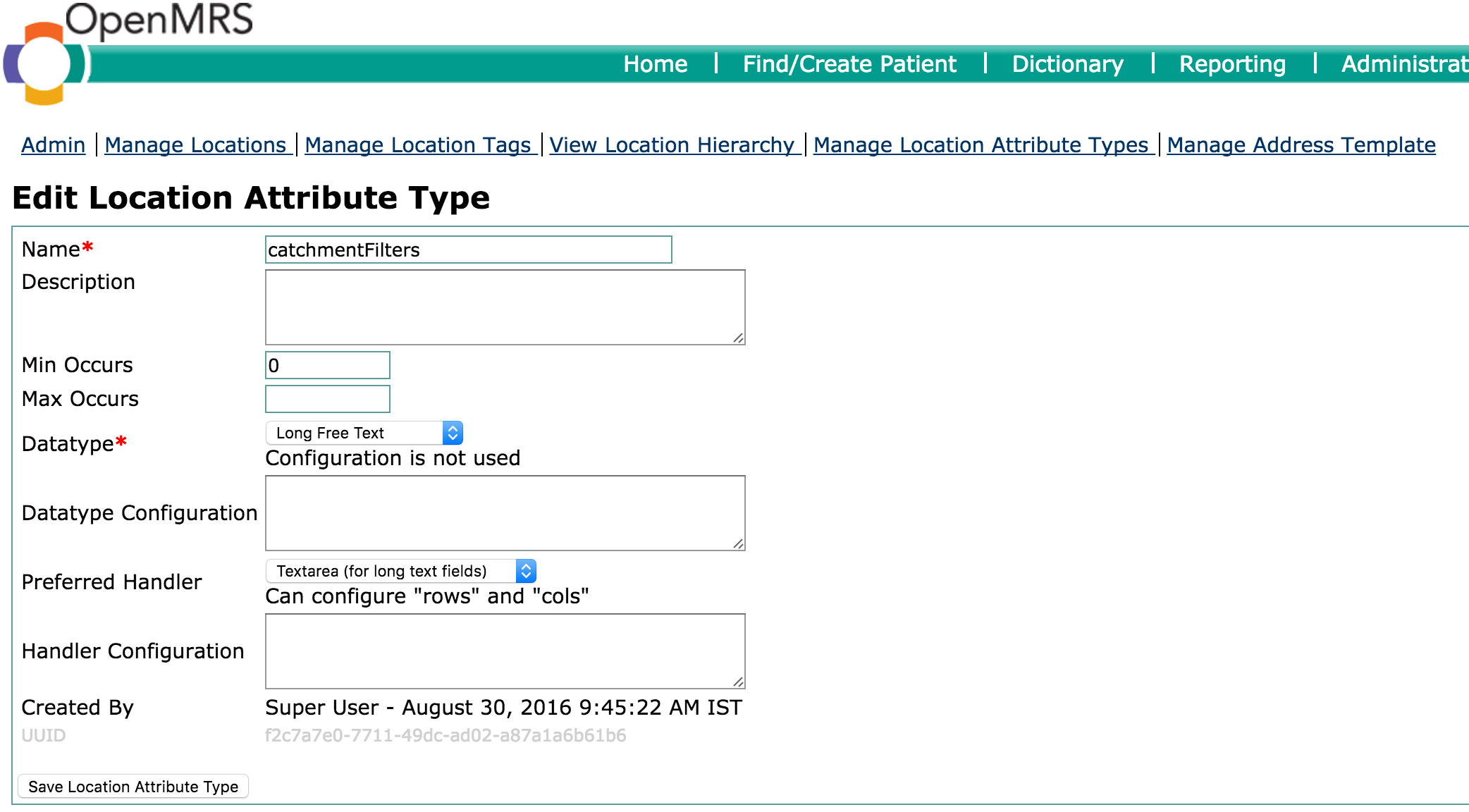
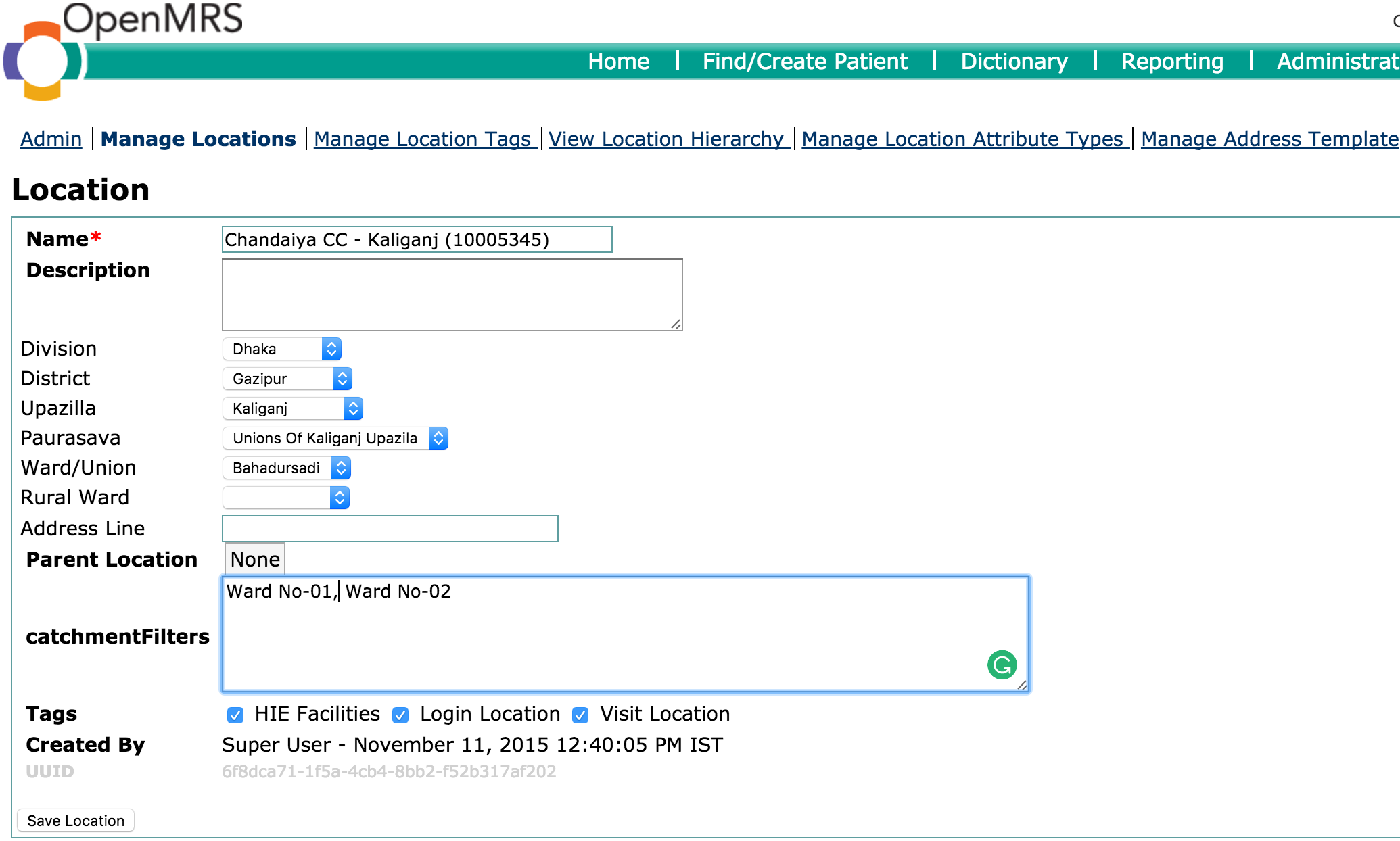
4) Display Controls Supported by Bahmni Connect
The display controls currently supported by Bahmni Connect client are:
- Diagnosis display control
- Observations display control
- Lab orders display control
- Visit display control
These display controls are updated after the Bahmni Connect client syncs with the server.
5) Registration
Bahmni Connect supports the following major features of the Registration module
- Configurable Patient Search based on name, id, address, or custom attributes
- Display of patient attributes when searched for in registration page, including Village name.
- Capture of patient details (identity, name, age, gender, custom attributes).
- Editing of existing patient details
6) Syncing Encounters of a Patient Across Catchments
Given that a patient moves across catchments (such as a pregnant patient moving from her living place to her maternal place), the existing patient encounters must be imported to the new location so that it aids in patient healthcare. Bahmni Connect provides this feature.
Process wise the patient record must move from the existing login location to the new login location → which means that the patient’s address must be changed in the new login location, and must then sync back to the Bahmni Connect client mapped to this login location
7) Visits and Encounters
Functionally, visits and encounters are handled similar to how they are handled in online mode with some differences as listed below:
A visit is not opened for a patient during registration. Patient registration information is saved on the device and even when synced, no visit is created for the patient. The same is the case of encounters in that no registration encounter is created for a patient after registration.
When clinical data (observations) is recorded for a patient and saved when offline, a dummy visit and an encounter are opened and stored on the device. There are three scenarios:
- A new patient created on offline device
- Clinical data added for existing patients
- Clinical data added for a patient when offline, but before sync the patient also has a open visit in hospital.
Below are some available configurations for Visits and Encounters:
a. Configuration of Visit Matcher
A global property has to be added to OpenMRS to set visit matcher to Offline Visit matcher.

b. Configuration of Recent Patients in Search All Tab

The All Tab on page load shows a list of patient below the search bar that have been created or have an encounter in the last 14 days.
The duration for the recent patient list can be configured in the clinical/app.json file in the config section
{
	"config": {
			"recentPatientsDuration": 7
	}
}
c. Hiding Clinical Search Tabs
Configured patient search tabs in the Clinical app can be hidden on Bahmni Connect by specifying an additional flag "offline:false" in the search tab configuration block in clinical/extension.json
"bahmni_clinical_patients_search_allpatients_active_app:clinical": {
    "id": "bahmni.clinical.patients.search.activePatients",
    "extensionPointId": "org.bahmni.patient.search",
    "type": "config",
    "extensionParams": {
        "searchHandler": "emrapi.sqlSearch.activePatients",
        "translationKey": "Active",
        "forwardUrl": "#/default/patient/{{patientUuid}}/dashboard"
    },
    "label": "Active",
	"offline": false,
    "order": 2,
    "requiredPrivilege": "app:clinical"
},
8) Registration Second Page or the Visit Details Page
Given that the Registration second page (or the visit details page) is configured to be displayed, upon entering observations and saving the registration first page the User will be navigated to Registration second page to enter observations for the patient. To enable Registration second page in Bahmni Connect, the following configuration must be added to ...apps/registration/extension.json.
Note that if the above configuration is not added to extension.json, Registration second page will not be displayed on Bahmni Connect.
"nutritionalValues":{
        "id": "bahmni.registration.conceptSetGroup.nutritionalLevels",
        "extensionPointId": "org.bahmni.registration.conceptSetGroup.observations",
        "type": "config",
        "extensionParams": {
            "conceptName": "Nutritional Values",
            "translationKey": "NUTRITIONAL_VALUES_LOCALE_KEY",
            "conceptNames": ["Height", "Weight"],
            "required":true,
            "showLatest": true
},If Registration second page is not configured, then the following configuration must be added to extension.json so that the navigation button to Consultation comes up in the first page:
"bahmni_patient_registration_next": {
       "id": "bahmni.patient.registration.next",
       "extensionPointId": "org.bahmni.registration.patient.next",
       "type": "config",
       "extensionParams": {
           "display": "Enter <u>C</u>onsultation",
           "shortcutKey": "c",
           "forwardUrl": "../clinical/index.html#/default/patient/{{patientUuid}}/dashboard"
       },
       "order": 1,
       "requiredPrivilege": "app:clinical"
   }
9) Observation Templates in Bahmni Connect Support Form Conditions
Form conditions allows users to allows users to enable or disable observations fields as well as show errors based on specific conditions or inputs on the form. For example certain sections in a form are only needed to be filled based on specific inputs or conditions in a form.
Given that forms are used to capture observations in Bahmni, the Bahmni Connect client supports form conditions in an offline setting.
10) Recording Data from Multiple Locations in a Single Bahmni Connect Device
Given that a user travels to multiple locations during an outreach visit, Bahmni Connect must support multiple catchments so that usage becomes intuitive and reporting becomes accurate. This will make Bahmni Connect usable in scenarios where multiple locations are covered by a user in a single tour.
In such a scenario, reference for all locations is stored in one database so that data storage is optimised.
The below figure represents a location to catchment mapping for Bahmni Connect:
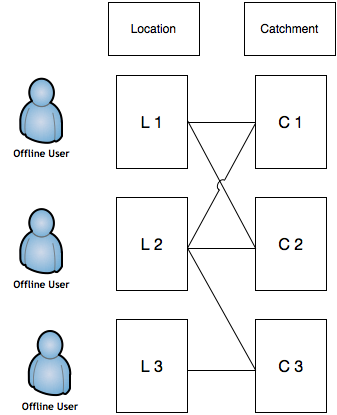
The use-cases are described below:
- Same device traversing multiple locations during one tour: The same device must record findings of patients across multiple locations in a tour/s.
- Segregating reports by locations: Having the device support multiple locations will make reporting accurate, as reports can be segregated by locations.
- Given that the user wants to sync regularly captured data from the device to Bahmni online from multiple locations, he/she can push the data for all locations at one go. However the pull is based on the logged in location.
To enable this Multiple DB feature, you have to set an OpenMRS global property called "allowMultipleLoginLocation" to true.

After the global property "allowMultipleLoginLocation" is set to true, you have to implement your own strategy for bahmni connect database.
The config will be present in /var/www/bahmni_config/offline/openmrs/apps/dbNameCondition. The sample strategy is given below
Example 1)
//One DB per login location, does not depends on provider
Bahmni.Common.Offline.dbNameCondition.get = function (provider, loginLocation) {
    return loginLocation;
};
Example 2)
//One DB per provider, does not depend on login location
Bahmni.Common.Offline.dbNameCondition.get = function (provider, loginLocation) {
	 return provider;
};
Example 3)
//One DB per device, does not depend on either provider or login location
Bahmni.Common.Offline.dbNameCondition.get = function (provider, loginLocation) {
    return 'Bahmni Connect';
};
Example 4)
//you can create any type of strategy with your own sort of logic
//Like:
Bahmni.Common.Offline.dbNameCondition.get = function (provider, loginLocation) {
	if(provider === 'batman')
       	return provider;
    if(loginLocation === 'location1' || loginLocation === 'location2')
    	return 'location1_2';
    return loginLocation;
};Table of Contents
Bahmni Wiki · CC BY-SA 4.0