Installation Steps - Connect
Steps
1. Install Bahmni Connect Client
Bahmni Connect is currently supported via a Chromium extension or an Android App. Please refer to the details below to install and configure the client.
a. Chromium Extension
Chromium Extensions are small software programs that can modify and enhance the functionality of the Chrome browser. Here are further details on installing and deleting extensions. Bahmni Connect has been tested on both a Windows chrome browser and a Mac chrome browser
Steps to Install Chromium Extension
- α-Release of chromium extension is now available at https://bintray.com/bahmni/generic/download_file?file_path=bahmni-offline-0.88-174.tar.gz
- Unzip bahmni.tar.gz
- Navigate to chrome://extensions
- Expand the developer dropdown menu and click "Load Unpacked Extension"
- Navigate to the local unzipped folder and click on 'Select' button.
- Assuming there are no errors, the extension should load into your browser.
b. Android App
Bahmni on Android is designed for tablets with very low resources such as minimal internal storage. Hence there is an option of storing the patient data in the SD card. SQLite supports storing the data on the SD card. Since the SD card is easily accessible or transferrable, SQLite DB is encrypted. Copying the Bahmni.db file from the SD card and attempting to accessing the data is not possible because of the DB encryption.
Steps to Install Bahmni Android App
- Android specific APK is now available at https://bintray.com/bahmni/generic/download_file?file_path=bahmni-offline-0.88-174.apk
- Connect Android device to PC via USB cable and turn on USB storage.
- Copy bahmni.apk file to attached device's storage.
- Turn off USB storage and disconnect it from PC.
- Check the option Settings → Applications → Unknown sources.
- Open FileManager app and click on the copied bahmni.apk file.
- It will ask you whether to install this app or not. Click Yes or OK.
c. Progressive web app
Progressive Web App takes advantage of new features supported by modern browsers, including Service Workers and Web App Manifests and allows the users to work offline.
First time access of Bahmni Connect app requires network connection. During this first access to Bahmni Connect the service workers will cache the files needed for connect app to run in offline mode.
Steps to open PWA
- Access Bahmni Connect using url https://<<server ip>>/bahmni-connect.
- Once the files get successfully cached, the login page appears.
Steps to uninstall PWA in chrome
- Using Bahmni App:This feature is available from Bahmni Connect 0.90 release version
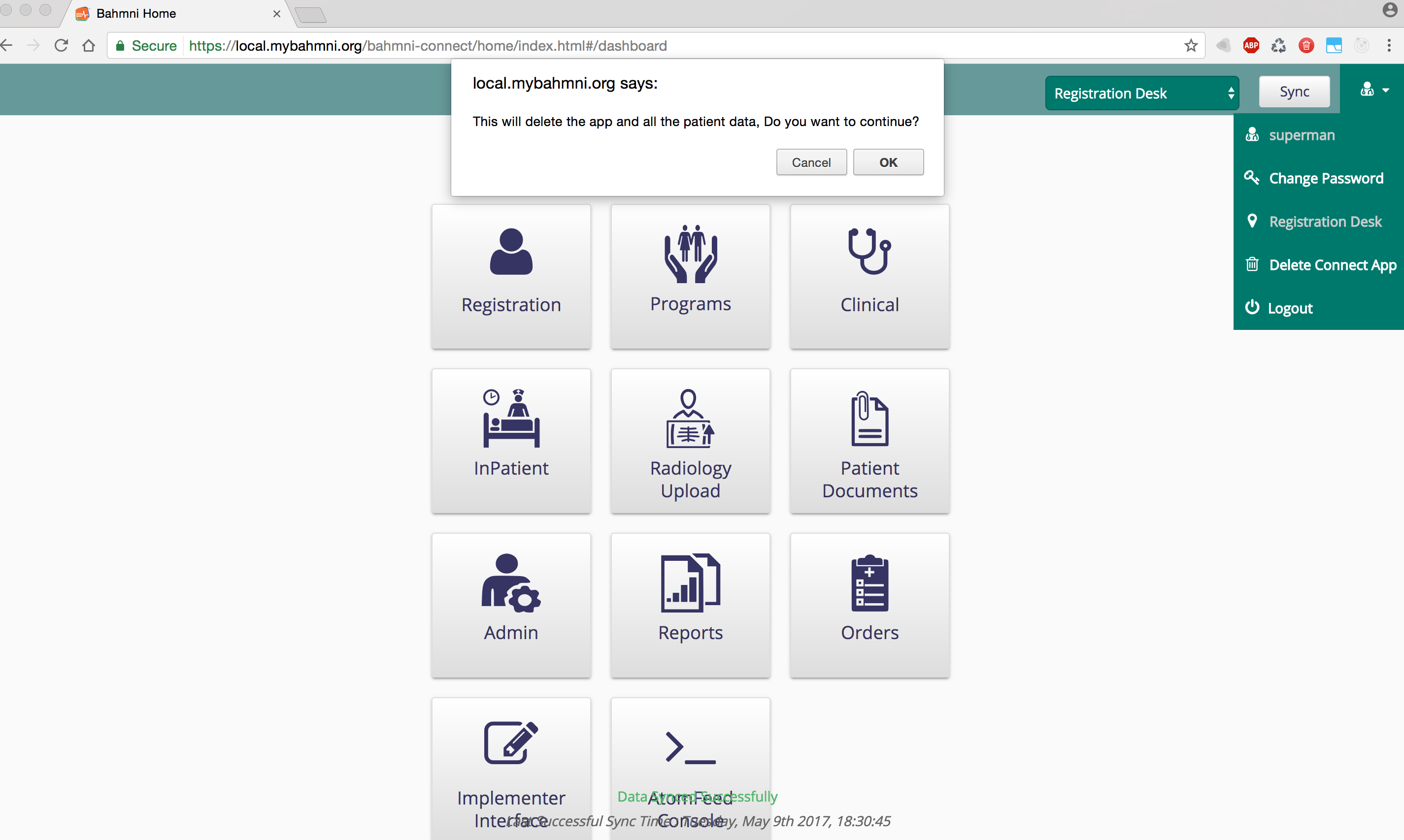
Open User profile drop down in home page, click on Delete Connect App button. Then Confirmation dialog appears, click OK to delete the app.
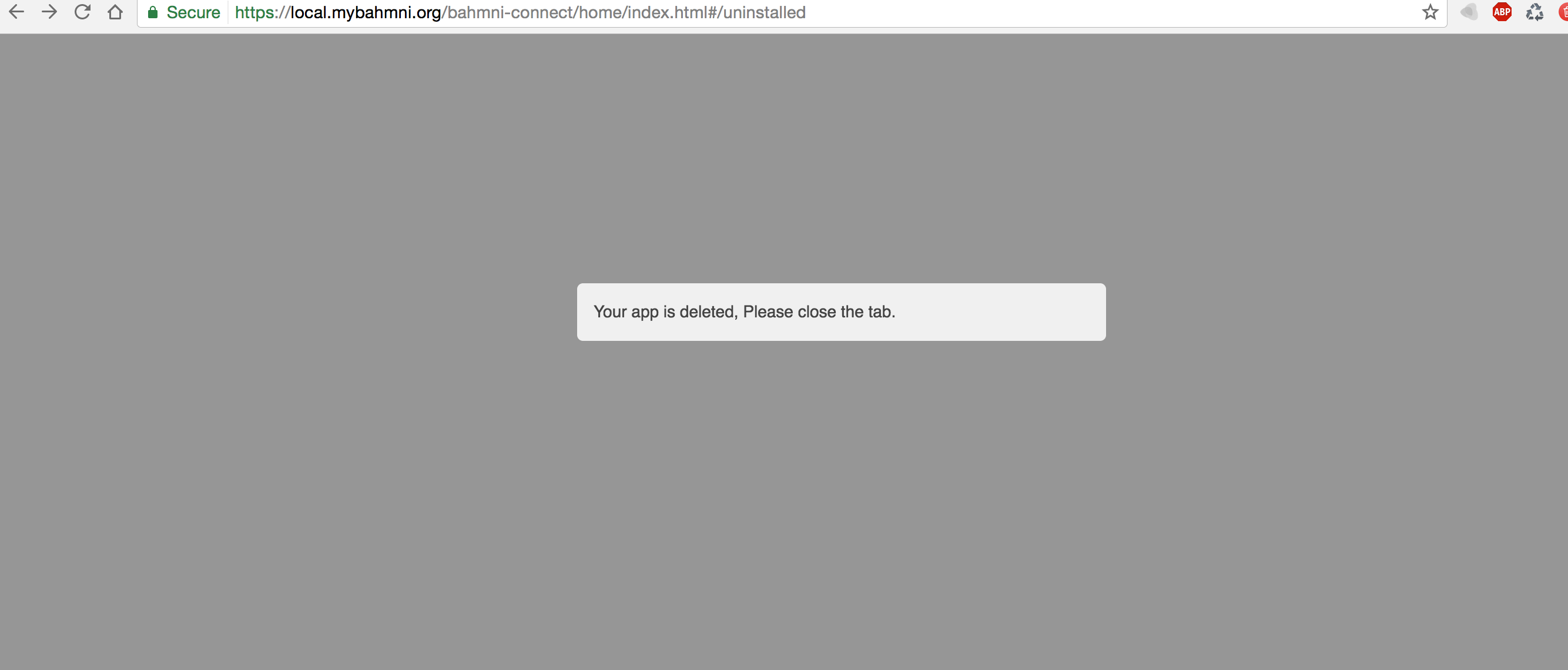
After clicking on OK, below screen appears, then please close the tab.
2. Using Developer tools:
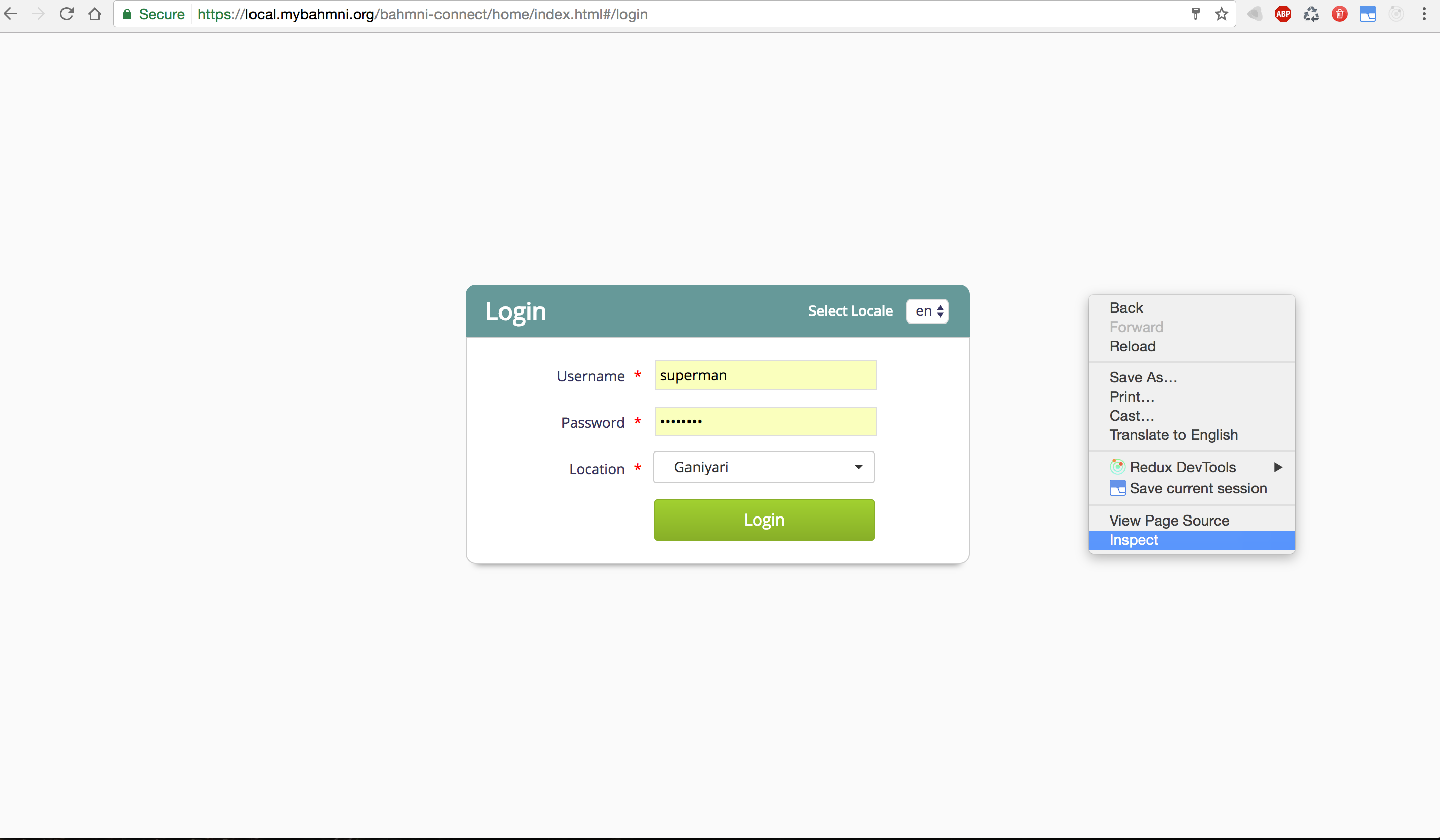
- Open the application, right click on the page
- Menu box appears on the page, click on inspect option.
- On clicking inspect, developer options will appear on the below or right side of the page. Then click on the Application tab.
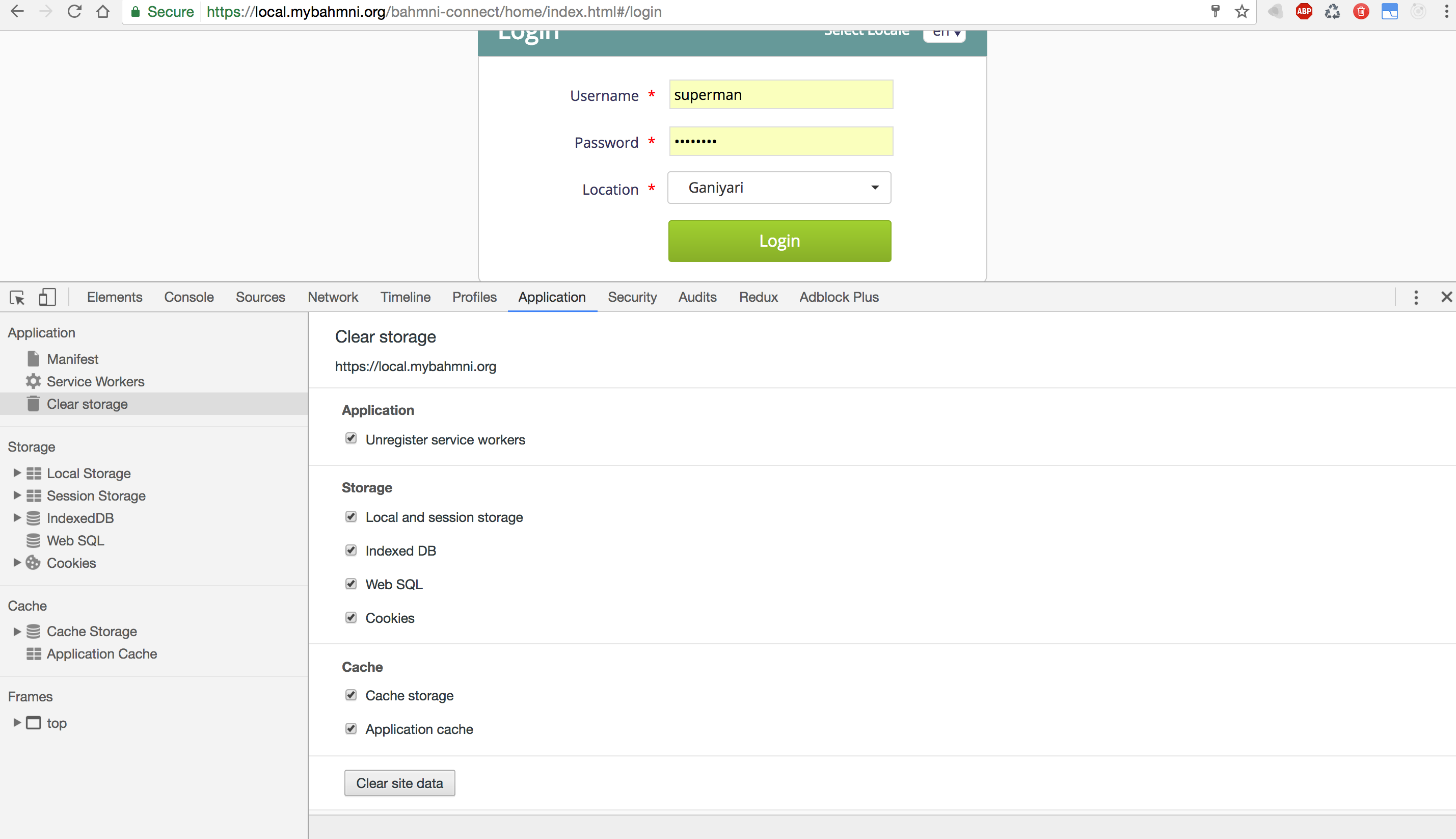
- Go to Clear storage in Application tab.
- Check all the boxes in clear storage and click on Clear Site data which will erase all the data of application.
- Now close the tab and reopen the application.
2. Configure Bahmni Connect Client
The sync interval has to be configured for the Bahmni Connect Client. To do it, create a file named offline-config.json in '/openmrs/apps/home/' folder and add the required interval.
{
	"schedulerInterval": 40000
}| Config | Values | Description |
|---|---|---|
| schedulerInterval | in milli-seconds | The Chromium app or Android app will behave like an "offline first application", which means any data read or written happens to localDB first and will be synced to the server later. This property defines time interval for auto sync. |
Table of Contents
Bahmni Wiki · CC BY-SA 4.0