Reports
Purpose and Benefits
Canned and Custom Reports have their limitations. An implementer needs to know the OpenMRS data model and Custom SQL to extract the data for custom reports. In response to customer requests, developers have to repeatedly create custom reports by duplicating the SQL from a similar report, thus increasing the maintenance complexity.
To solve this, Bahmni has introduced entity based reports for various entities in OpenMRS, for example: Observations, Visits and Programs etc. These reports allow an implementer to extract data from the system for each entity, hence Bahmni has a report for each. These reports provide options to include related fields and to apply various filters.
| type | Name | |
|---|---|---|
| 1 | visits | Visit based reports |
| 2 | observations | Observations recorded for patients |
| 3 | forms | Observation Form report |
| 4 | formBuilder | Observations captured in specific form (created via Form Builder) |
| 5 | programs | Data for patients enrolled in particular Program |
| 6 | aggregation | To show aggregate data (like a pivot table) on Observations |
| 7 | concatenated | Concatenates multiple "reports" into one report with multiple tabs for each report |
| 8 | labOrders | Lab Orders/results for patient |
| 9 | fhirTSLookupDiagnosis | Diagnosis count report based on hierarchy offered by FHIR based terminology server i.e. Snowstorm |
Privilege based access to reports
From Bahmni 0.93 version onwards, you can have privilege based access to any report.
The configuration parameter "requiredPrivilege" determines whether a logged in user can run a particular report. Note, this is in addition to the mandatory "app:reports" privilege that must be assigned to have users access to the reporting module. In sample configuration here (in your server setup location /var/www/bahmni_config/openmrs/apps/reports/reports.json), you may notice that the "requiredPrivilege" is mentioned as "app:reports" - you should change it and assign specific privilege to the report definition. You can define custom "privileges" and group it under appropriate role (or create new role) to be assigned to a user.
Types of Reports
1. Visits Report
This feature allows the implementer to configure a customer-specific way to extract visit information. Using this report, filter(s) can be applied and a specific set of fields can be configured to appear in the output.
The following fields appear by default in the output.
- Patient Identifier
- Patient Name (First Name + Last Name)
- Age
- Birthdate
- Gender
- Patient Created Date
- Visit type
- Date started
- Date stopped
- Date Of Admission
- Date Of Discharge
- New patient visit (When patient created and visit started same day then that visit considered)
| Key | Description | Required | Default |
|---|---|---|---|
| nameOfReport | Unique key to identify the report | Yes | |
| name | Report name to be shown on report | Yes | |
| type | Type of report | Yes | It has to be "visits" |
| config | The section to configure what is needed in the report | No | |
| forDataAnalysis | Fetches the patient_id and visit_id in the report | No | False |
| patientAttributes | Fetches patient attributes along with the mandatory fields | No | |
| visitAttributes | Fetches visit attributes along with the mandatory fields | No | |
| patientAddresses | Fetches patient address along with the mandatory fields | No | |
| applyDateRangeFor | Configures the field which we have to apply the date range for (visitStopDate | visitStartDate | dateOfAdmission | dateOfDischarge) | No | visitStartDate |
| visitTypesToFilter | Filters the visits by its type | No | All visit types |
| excludeColumns | Excludes the columns from output. | No | Includes all columns. |
| additionalPatientIdentifiers | Displays additional identifiers in the report | No | No additional patient identifiers |
| ageGroupName | Name of the age group to show in report. Age group configurations can be inserted into the reference table "reporting_age_group" | No | No age group |
| preferredColumns | Order of the columns to be displayed in the output reportNeed not mention all the columns in the config. Configured columns will be given precedence and shown first followed by all the other remaining columns in default order | No | Default order of the columns for the report.sample configuration"preferredColumns": ["Patient Name","Birth Date","Age"] |
| sortBy | To sort the reports output in ascending/descending order based on the configuration.Columns that are not present in the output of the report should not be configured. Default behaviourIf just column is configured, not the sortOrder , then default sortOrder is ascending (asc). Allowed values for "sortOrder"For key "sortOrder", "asc" or "desc" are allowed values. Configured values are case insensitive. | No | Default output for the report.sample configuration"sortBy" : [{"column" : "BirthDate", "sortOrder" : "desc"}] |

Sample Report
2. Observations Report
This feature allows the implementer to configure a way to extract observation information. Using this report, filter(s) can be applied and a specific set of fields can be configured to appear in the output.
The following fields appear by default in the output.
- Patient Identifier
- Patient Name (First Name + Last Name)
- Age
- Birthdate
- Gender
- Location Name
- Concept Name (If encounterPerRow is false)
- Observation Value (If encounterPerRow is false)
- Observation datetime (If encounterPerRow is false)
- Parent Concept (If encounterPerRow is false)
- Program Enrollment Date
- Program End Date
- Patient Created Date
| Key | Possible Values | Description | Required | Default |
|---|---|---|---|---|
| nameOfReport | Any string | Unique key to identify the report | Yes | |
| name | Any String | Report name to be shown on report | Yes | |
| type | Type of the report | Yes | "It has to be observations" | |
| config | The section to configure what you need in the report | No | ||
| patientAttributes | Any patient attribute types | Fetches patient attributes and mandatory fields | No | |
| patientAddresses | Any patient address fields | Fetches patient address and mandatory fields | No | |
| visitAttributes | Any visit attribute types | Fetches visit attributes and mandatory fields | No | |
| showVisitInfo | true / false | Fetches visit information and mandatory fields. It fetches visit type, visit start date, visit stop date. | No | False |
| showProvider | true / false | Fetches providers of individual observation.NOTE: Report doesn't show provider name if encounterPerRow is true. | No | False |
| conceptNamesToFilter | Any FULLY_SPECIFIED concept name | Filters observation by any concepts/template/forms. It should be a FULLY_SPECIFIED concept name | Yes/No | All observations within date range if encounterPerRow is falseNo observations if encounterPerRow is true |
| conceptValuesToFilter | Any value | Filters observation by any values like coded, range, text. (“underWeight”, “Normal”, “10..100”, “..100”). Format for numeric ranges :- "10..100": A range from 10 to 100 inclusive- "..100": Maximum value 100 inclusive- "10.." Minimum value of 10 inclusive | Yes/No | All observations within date range if encounterPerRow is falseNo observations if encounterPerRow is true |
| conceptClassesToFilter | Any concept class | Filters observation by any concept classes like Drug, LabTest etc.. | Yes/No | Doesn't filter. Gives all observation of concepts configured of any class. |
| locationTagsToFilter | Any location tag | Filters observations by locations. | No | All locations' data. |
| applyDateRangeFor | visitStopDate /visitStartDate /programDate /obsCreatedDate / obsDate | Configures the field which we have to apply the date range for. | No | obsDate |
| encounterPerRow | true / false | Fetches one encounter per row. ConceptName will be column and value will be row. If a concept is captured multiple times in an encounter it will appear comma separated. | No | False |
| forDataAnalysis | true / false | Fetches database ids like patient_id, concept_id, observation_id etc. for purpose of analysis. | No | False |
| programsToFilter | any program name | Filters observations by programs | No | |
| visitTypesToFilter | any visit type | Filters the visits by its type | No | All visit types |
| excludeColumns | any column names | Excludes the columns from output. | No | Doesn't exclude any columns. |
| additionalPatientIdentifiers | Any additional patient identifier type | Displays additional identifiers in the report | No | Doesn't display additional patient identifiers |
| ignoreEmptyValues | true / false | Ignores rows with no observation value. This config is not applicable when encounterPerRow is true | No | false |
| conceptNameDisplayFormat | shortNamePreferred/fullySpecifiedName/fullySpecifiedName (shortName) | Displays the format of concept name on the report. shortNamePreferred displays the Concept Short Name if available, else the Fully Specified Name. Note: This option is currently only available for observation reports. | No | fullySpecifiedName(shortName) |
| ageGroupName | Name of age group | Age group to be displayed in the report | No | Doesn't show age group |
| preferredColumns | List of column names | Order of the columns to be displayed in the output reportNeed not mention all the columns in the config. Configured columns will be given precedence and shown first followed by all the other remaining columns in default order | No | Default order of the columns for the report.sample configurationpreferredColumns: ["Patient Name","Birth Date","Age"] |
| sortBy | List of objects | To sort the reports output in ascending/descending order based on the configuration.Columns that are not present in the output of the report should not be configured.Sorting on Observation value may not work as expected because the value might have mixed data types. Default behaviourIf just column is configured, not the sortOrder , then default sortOrder is ascending (asc). Allowed values for "sortOrder"For key "sortOrder", "asc" or "desc" are allowed values. Configured values are case insensitive. | No | Default output for the report.sample configuration"sortBy" : [{"column" : "BirthDate", "sortOrder" : "desc"}] |
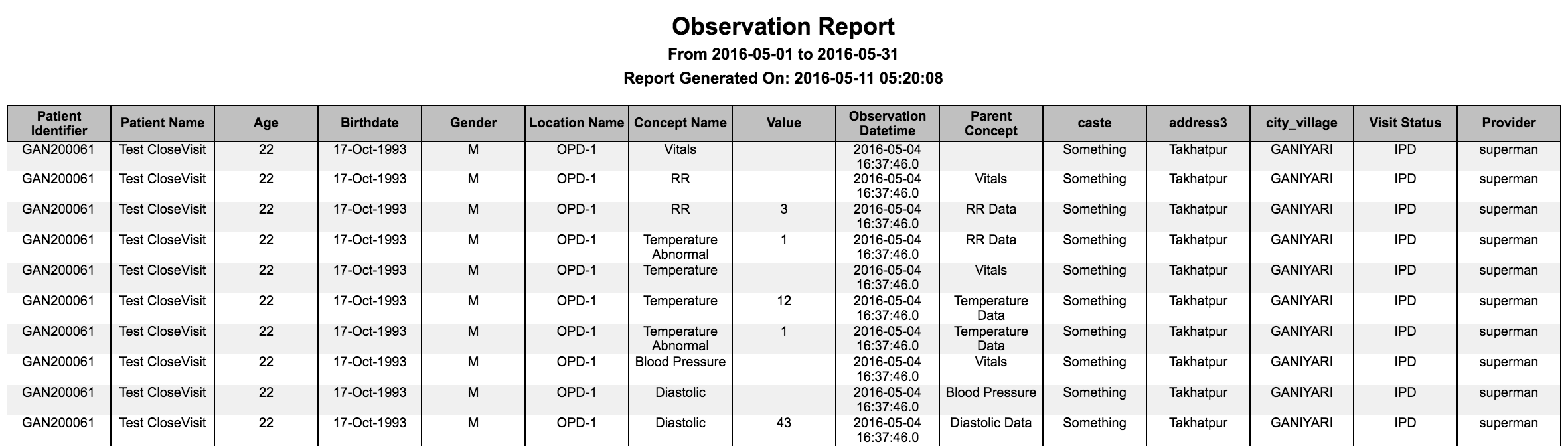
Report with one observation per row

Report with one encounter per row

Report with all the default fields
3. Observation Form Report
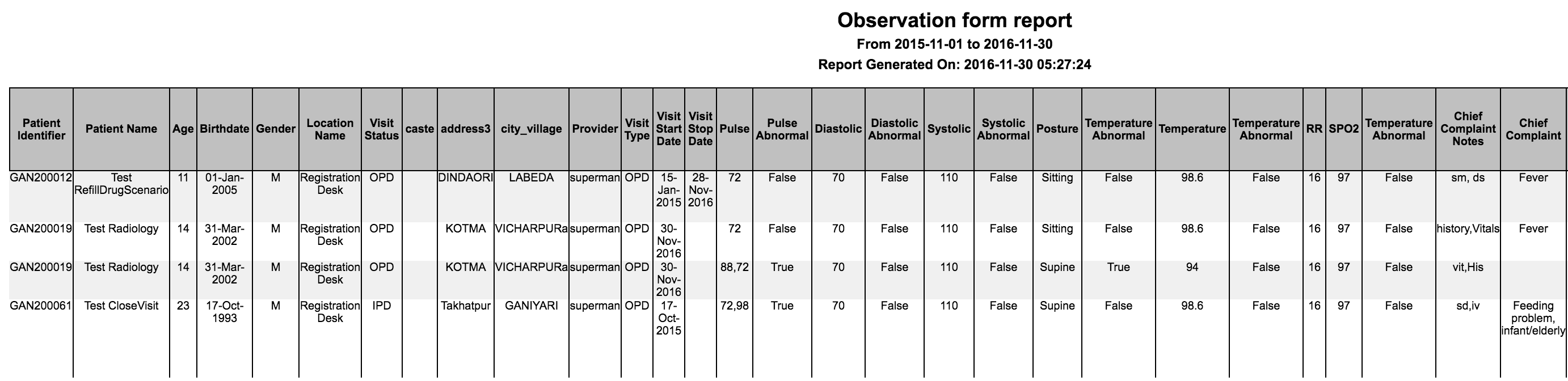
This feature allows implementer to extract one or more observation forms information.Using this report, filter(s) can be applied and a specific set of fields can be configured to appear in the output.
The following fields appear by default in the output.
- Patient Identifier
- Patient Name (First Name + Last Name)
- Age
- Birthdate
- Gender
- Location Name
- Concept Names
- Program Name ( This applicable when filter by Program)
- Program Enrollment Date(This applicable when filter by Program)
- Program End Date (This applicable when filter by Program)
| Key | Possible Values | Description | Required | Default |
|---|---|---|---|---|
| nameOfReport | Any string | Unique key to identify the report | Yes | |
| name | Any String | Report name to be shown on report | Yes | |
| type | Type of the report | Yes | "It has to be forms" | |
| config | The section to configure what you need in the report | Yes | ||
| patientAttributes | Any patient attribute types | Fetches patient attributes and mandatory fields | No | |
| patientAddresses | Any patient address fields | Fetches patient address and mandatory fields | No | |
| visitAttributes | Any visit attribute types | Fetches visit attributes and mandatory fields | No | |
| programAttributes | Any program attribute types | Fetches program attributes and mandatory fields | No | This is applicable only if filtered by programs |
| showVisitInfo | true / false | Fetches visit information and mandatory fields. It fetches visit type, visit start date, visit stop date. | No | False |
| showProvider | true / false | Fetches providers of individual observation. | No | False |
| formNamesToFilter | Any FULLY_SPECIFIED form name | Filters observation by forms. It should be a FULLY_SPECIFIED form name | Yes | All observations contain a row for each encounter If obs form content is big or same concept used in more than one form then suggestion is to have multiple report for each form rather combine into one. |
| locationTagsToFilter | Any location tag | Filters observations by locations. | No | All locations' data. |
| applyDateRangeFor | visitStopDate /visitStartDate /programDate /obsCreatedDate / obsDate | Configures the field which we have to apply the date range for. | No | obsDate |
| programsToFilter | any program name | Filters observations by programs | No | |
| visitTypesToFilter | any visit type | Filters the visits by its type | No | All visit types |
| excludeColumns | any column names | Excludes the columns from output. | No | Doesn't exclude any columns. |
| additionalPatientIdentifiers | Any additional patient identifier type | Displays additional identifiers in the report | No | Doesn't display additional patient identifiers |
| conceptNameDisplayFormat | shortNamePreferred/fullySpecifiedName/fullySpecifiedName (shortName) | Displays the format of concept name on the report. shortNamePreferred displays the Concept Short Name if available, else the Fully Specified Name. | No | shortNamePreferred |
| preferredColumns | List of column names | Order of the columns to be displayed in the output reportNeed not mention all the columns in the config. Configured columns will be given precedence and shown first followed by all the other remaining columns in default order | No | Default order of the columns for the report.sample configurationpreferredColumns: ["Patient Name","Birth Date","Age"] |
| sortBy | List of Objects | To sort the reports output in ascending/descending order based on the configuration.Columns that are not present in the output of the report should not be configured.Sorting on Observation value may not work as expected because the value might have mixed data types. Default behaviourIf just column is configured, not the sortOrder , then default sortOrder is ascending (asc). Allowed values for "sortOrder"For key "sortOrder", "asc" or "desc" are allowed values. Configured values are case insensitive. | No | Default output for the report.sample configuration"sortBy" : [{"column" : "BirthDate", "sortOrder" : "desc"}] |
4. Form Builder Observation Form Report
This feature allows implementer to extract one or more observation form builder forms information.Using this report, filter(s) can be applied and a specific set of fields can be configured to appear in the output.
The following fields appear by default in the output.
- Patient Identifier
- Patient Name (First Name + Last Name)
- Age
- Birthdate
- Gender
- Location Name
- Concept Names
- Program Name ( This applicable when filter by Program)
- Program Enrollment Date(This applicable when filter by Program)
- Program End Date (This applicable when filter by Program)
| Key | Possible Values | Description | Required | Default |
|---|---|---|---|---|
| nameOfReport | Any string | Unique key to identify the report | Yes | |
| name | Any String | Report name to be shown on report | Yes | |
| type | Type of the report | Yes | "It has to be formBuilder" | |
| config | The section to configure what you need in the report | Yes | ||
| patientAttributes | Any patient attribute types | Fetches patient attributes and mandatory fields | No | |
| patientAddresses | Any patient address fields | Fetches patient address and mandatory fields | No | |
| visitAttributes | Any visit attribute types | Fetches visit attributes and mandatory fields | No | |
| programAttributes | Any program attribute types | Fetches program attributes and mandatory fields | No | This is applicable only if filtered by programs |
| showVisitInfo | true / false | Fetches visit information and mandatory fields. It fetches visit type, visit start date, visit stop date. | No | False |
| showProvider | true / false | Fetches providers of individual observation. | No | False |
| formNamesToFilter | AnyFORM BUILDER form name | Filters observation by forms. It should be a published FORM BUILDER form name | Yes | All observations contain a row for each encounter If obs form content is big or same concept used in more than one form then suggestion is to have multiple report for each form rather combine into one. |
| locationTagsToFilter | Any location tag | Filters observations by locations. | No | All locations' data. |
| applyDateRangeFor | visitStopDate /visitStartDate /programDate /obsCreatedDate / obsDate | Configures the field which we have to apply the date range for. | No | obsDate |
| programsToFilter | any program name | Filters observations by programs | No | |
| visitTypesToFilter | any visit type | Filters the visits by its type | No | All visit types |
| excludeColumns | any column names | Excludes the columns from output. | No | Doesn't exclude any columns. |
| additionalPatientIdentifiers | Any additional patient identifier type | Displays additional identifiers in the report | No | Doesn't display additional patient identifiers |
| conceptNameDisplayFormat | shortNamePreferred/fullySpecifiedName/fullySpecifiedName (shortName) | Displays the format of concept name on the report. shortNamePreferred displays the Concept Short Name if available, else the Fully Specified Name. | No | shortNamePreferred |
| preferredLocale | Any locale that has a valid translation | Fetches concepts by the locale. | No | en |
| preferredColumns | List of column names | Order of the columns to be displayed in the output reportNeed not mention all the columns in the config. Configured columns will be given precedence and shown first followed by all the other remaining columns in default order | No | Default order of the columns for the report.sample configurationpreferredColumns: ["Patient Name","Birth Date","Age"] |
| sortBy | List of Objects | To sort the reports output in ascending/descending order based on the configuration.Columns that are not present in the output of the report should not be configured.Sorting on Observation value may not work as expected because the value might have mixed data types. Default behaviourIf just column is configured, not the sortOrder , then default sortOrder is ascending (asc). Allowed values for "sortOrder"For key "sortOrder", "asc" or "desc" are allowed values. Configured values are case insensitive. | No | Default output for the report.sample configuration"sortBy" : [{"column" : "BirthDate", "sortOrder" : "desc"}] |

5. Programs Report
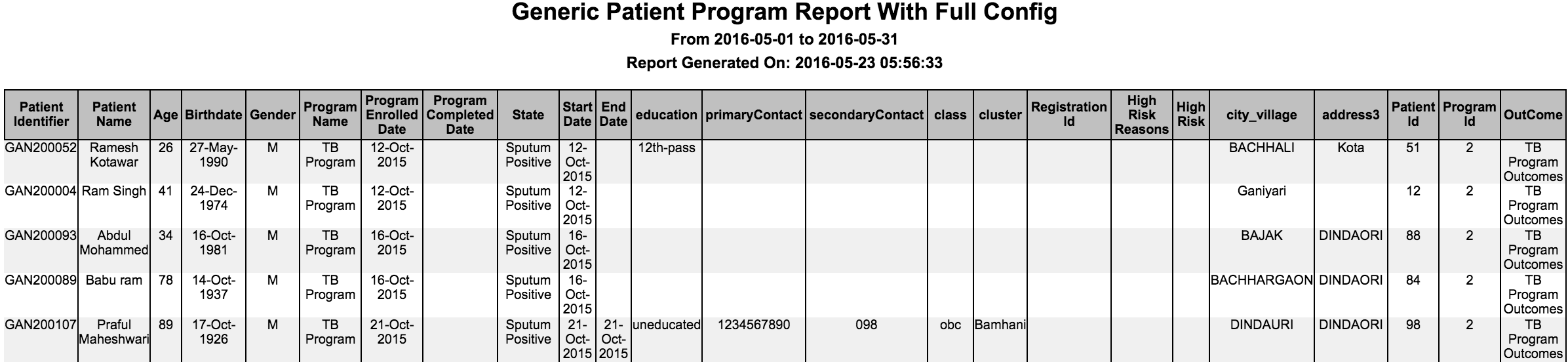
This feature allows the implementer to extract program information in a variety of ways. Using this report, filter(s) can be applied and a specific set of fields can be configured to appear in the output.
The following fields appear by default in the output.
- Patient Identifier
- Patient Name (First Name + Last Name)
- Age
- Birthdate
- Gender
- Patient Created Date
- Program Name
- Date Enrolled
- Date Completed
- Current State
| Key | Possible Values | Description | Required | Default |
|---|---|---|---|---|
| nameOfReport | Any string | Unique key to identify the report | Yes | |
| name | Any String | Report name to be shown on report | Yes | |
| type | "programs" | Type of the report | Yes | "It has to be programs" |
| config | Configure what is required in the report | No | ||
| patientAttributes | Patient Attribute Type | Fetches patient attributes and mandatory fields | No | None |
| patientAddresses | Patient address fields | Fetches patient address and mandatory fields | No | None |
| programAttributes | Program attribute type | Fetches program attributes and mandatory fields | No | None |
| programNamesToFilter | Array of program names | Filters by programs | No | All programs |
| forDataAnalysis | true / false | Fetches database ids like patient_id, program_id etc. for purpose of analysis. | No | False |
| showAllStates | true / false | Shows all the states of the program | No | False |
| excludeColumns | Any column | Excludes the columns from output. | No | Doesn't exclude any columns. |
| additionalPatientIdentifiers | Any additional patient identifier type | Displays additional identifiers in the report | No | Doesn't display any additional patient identifier |
| ageGroupName | Any age group name | Name of the age group to show in report | No | Doesn't show age group |
| preferredColumns | List of column names | Order of the columns to be displayed in the output reportNeed not mention all the columns in the config. Configured columns will be given precedence and shown first followed by all the other remaining columns in default order | No | Default order of the columns for the report.sample configurationpreferredColumns: ["Patient Name","Birth Date","Age"] |
| sortBy | List of objects | To sort the reports output in ascending/descending order based on the configuration.Columns that are not present in the output of the report should not be configured. Default behaviourIf just column is configured, not the sortOrder , then default sortOrder is ascending (asc). Allowed values for "sortOrder"For key "sortOrder", "asc" or "desc" are allowed values. Configured values are case insensitive. | No | Default output for the report.sample configuration"sortBy" : [{"column" : "BirthDate", "sortOrder" : "desc"}] |
6. Aggregation on reports
There are entity-based reports, for example, the observations report which extracts data from observations into excel where further macros can be applied. However this report gives the flexibility of providing pivot information in the configuration itself, instead of writing macros that will produce the required output.
| Key | Possible Values | Description | Required | Default |
|---|---|---|---|---|
| nameOfReport | Any string | Unique key to identify the report | Yes | |
| name | Any String | Report name to be shown on report | Yes | |
| type | "aggregation" | Type of the report | Yes | "It has to be aggregation" |
| config | Is the section to configure what you need in the report | Yes | ||
| report | Any existing entity based reports (Ex: observations) | Is to apply aggregation on that particular report. The config under report option refers to entity based report config. If it is observations then config values from observations report will be used here. | Yes | None |
| rowGroups | Any column name in the report on which we are doing aggregation | Includes columns to group for rows | Yes | None |
| columnGroups | Any column name in the report on which we are doing aggregation | Includes columns to group for columns | No | None |
| distinctGroups | Any column name in the report on which we are doing aggregation | Performs a distinct count on given column after grouping rows and columns | Yes | None |
| showTotalRow | true / false | Shows the Total row at the bottom of table | No | false |
| showTotalColumn | true / false | Show the Total Column as last column of table | No | false |

To generate aggregation for the above observations, use the sample config to produce the following output. This reports shows the number of males and females based on their diastolic and systolic values as we defined rowGroups as Gender and columnGroups as Concept Name and Value. The count is based on Patient Identifier which is specified in the distinct Group.

ReportConcatMultipleReports7. Concatenating Multiple Reports
This feature concatenates multiple reports. Concatenated reports do not support CSV format. And they can only work off a singe DB connection (see this discussion)
| Key | Possible Values | Description | Required | Default |
|---|---|---|---|---|
| nameOfReport | Any string | Unique key to identify the report | Yes | |
| name | Any String | Report name to be shown on the concatenated report | Yes | |
| type | "concatenated" | Type of the report | Yes | "It has to be concatenated" |
| config | Config for all the reports that you want in one report file. Please refer to the individual report description above for configuring them | Yes |
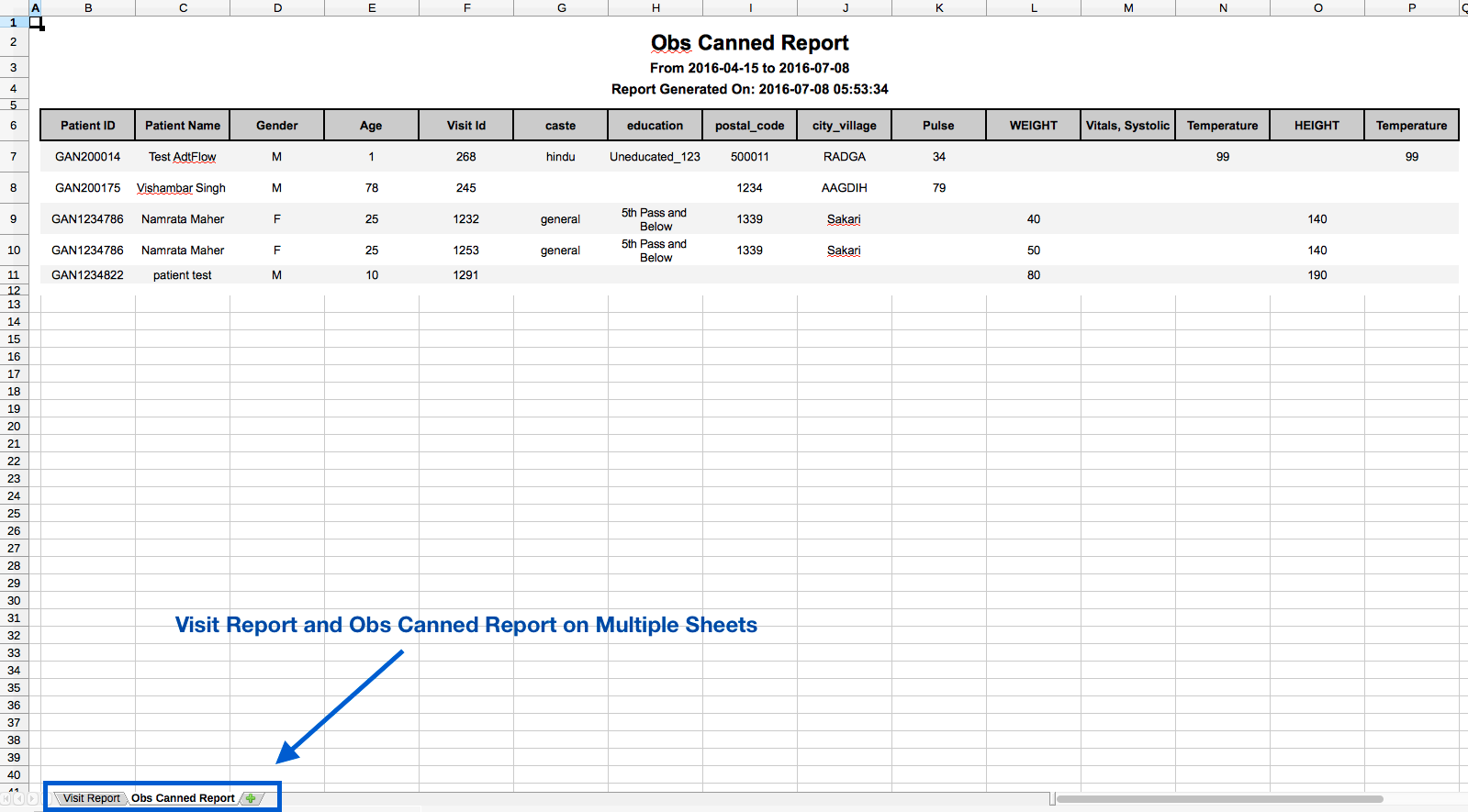
Example: A concatenated report of Visit Report and Obs Canned Report, will display each report on a different sheet in Excel. For other formats like PDF, HTML, etc., reports will be one below the other.
8. Lab Results Report
This feature allows the implementer to configure lab results information in a variety of ways. Using this report, filter(s) can be applied and a specific set of fields can be configured to appear in the output.
The following fields appear by default in the output:
- Patient Identifier
- Patient Name (First Name + Last Name)
- Age
- Birthdate
- Gender
- Test Order Date
- Test Name
- Test Result
- Test Outcome
- Test Result Min range
- Test Result Max range
- Referred Out
- File Uploaded
| Key | Possible Values | Description | Required | Default |
|---|---|---|---|---|
| nameOfReport | Any string | Unique key to identify the report | Yes | |
| name | Any string | Report name to be shown on report | Yes | |
| type | Type of the report | Yes | "It has to be labOrders" | |
| config | Configure what is required in the report | No | ||
| patientAttributes | Patient attribute types | Fetches patient attributes and mandatory fields | No | |
| patientAddresses | Patient address fields | Fetches patient address and mandatory fields | No | |
| visitAttributes | Visit attribute type | Fetches visit attributes and mandatory fields | No | |
| showVisitInfo | true / false | Fetches visit information and mandatory fields. It fetches visit type, visit start date, visit stop date. | No | False |
| showProvider | true / false | Fetches provider of individual lab result. | No | False |
| conceptNamesToFilter | FULLY_SPECIFIED concept name of a lab test | Filters lab results by any test name. The name you specify should be a FULLY_SPECIFIED concept name. | No | All lab results within specified date range |
| conceptValuesToFilter | Any test result value or numeric ranges | Fetches lab results by any test result value or numeric ranges. Format for numeric ranges:- "10..100": A range from 10 to 100 inclusive- "..100": Maximum value 100 inclusive- "10.." Minimum value of 10 inclusive | No | |
| forDataAnalysis | true / false | Fetches database ids like patient_id, concept_id, observation_id etc. | No | False |
| programsToFilter | any program name | Filters lab results by programs | No | |
| excludeColumns | any column names in the report | Excludes the columns from output | No | Doesn't exclude any columns. |
| showOrderDateTime | true / false | Shows order creation date time in the database | No | False |
| additionalPatientIdentifiers | Additional patient identifier type | Displays additional identifiers in the report | No | No additional patient identifier |
| ageGroupName | Any age group name | Name of the age group to show in report | No | No age group |
| showReferredOutTests | true / false | Filters out referred out tests based on the value | No | true |
| preferredColumns | List of column names | Order of the columns to be displayed in the output reportNeed not mention all the columns in the config. Configured columns will be given precedence and shown first followed by all the other remaining columns in default order | No | Default order of the columns for the report.sample configurationpreferredColumns: ["Patient Name","Birth Date","Age"] |
| sortBy | List of objects | To sort the reports output in ascending/descending order based on the configuration.Columns that are not present in the output of the report should not be configured. Default behaviourIf just column is configured, not the sortOrder , then default sortOrder is ascending (asc). Allowed values for "sortOrder"For key "sortOrder", "asc" or "desc" are allowed values. Configured values are case insensitive. | No | Default output for the report.sample configuration"sortBy" : [{"column" : "BirthDate", "sortOrder" : "desc"}] |
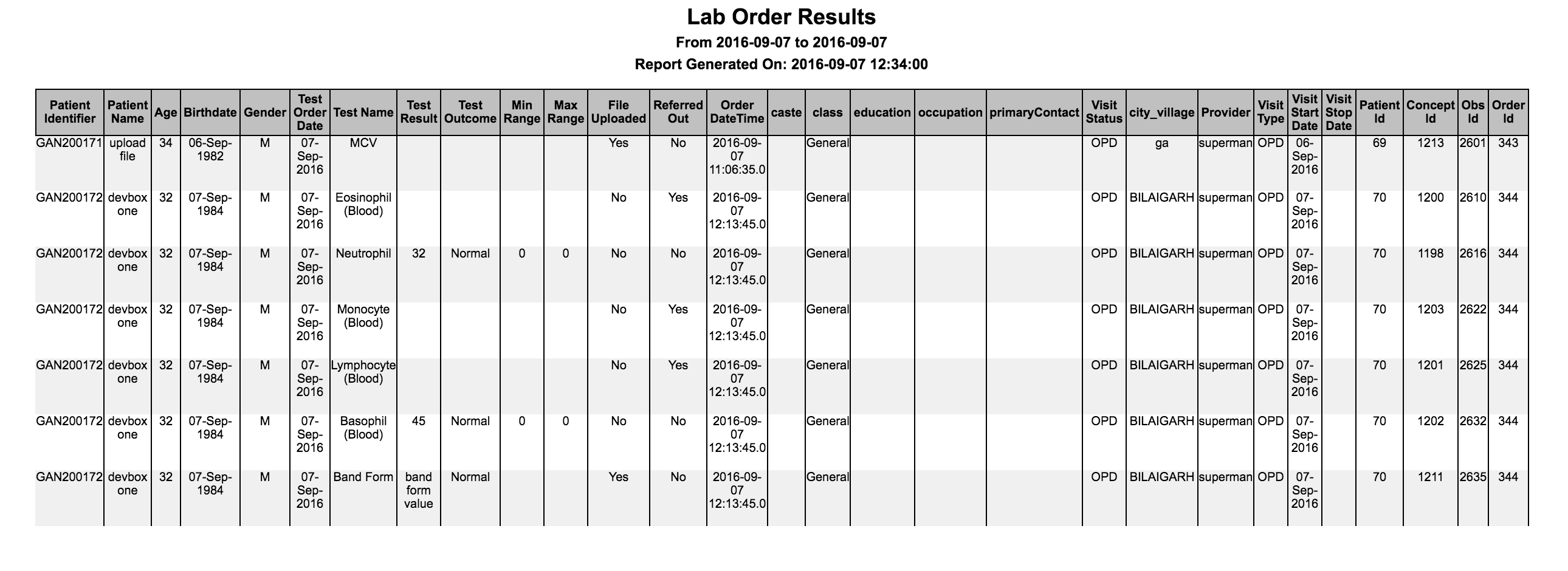
9. Terminology Server Lookup Diagnosis Report
Note: fhirTSLookupDiagnosisCount and fhirTSLookupDiagnosisLine is not an out-of-box report option in the product, but only available if someone uses the whole FHIR-TS setup. For more details refer to this link
This feature allows the implementer to configure a customer-specific way to extract diagnosis count information by leveraging descendant based knowledge on terminologies. Using this report, filter(s) can be applied and a specific set of fields can be configured to appear in the output.
Count Report
The following fields appear by default in the output:
- Diagnosis
- Terminology Code
- Total
| Key | Possible Values | Description | Required | Default |
|---|---|---|---|---|
| nameOfReport | Any string | Unique key to identify the report | Yes | |
| name | Any String | Report name to be shown on the Diagnosis report | Yes | |
| type | "fhirTSLookupDiagnosisCount" | Type of the report | Yes | "It has to be fhirTSLookupDiagnosisCount" |
| config | Config for all the reports that you want in one report file. Please refer to the individual report description above for configuring them | Yes | ||
| tsConceptSource | SCT | Source of terminology lookup | Yes | |
| conceptNameDisplayFormat | shortNamePreferred/fullySpecifiedName | Displays the format of concept name on the report. shortNamePreferred displays the Concept Short Name if available, else the Fully Specified Name. | ||
| terminologyParentCode | Any valid terminology code | Terminology code whose hierarchical descendants needs to be reported | Yes | |
| displayTerminologyCode | true / false | Boolean indicator to display/hide terminology code column for the given diagnosis | Yes | false |
| terminologyColumnName | Any name | Custom column name to override the default column name | No | "Terminology Code" |
| displayGenderGroup | true / false | Boolean indicator to display/hide gender group columns for the given diagnosis | Yes | false |

Line Report
| Key | Possible Values | Description | Required | Default |
|---|---|---|---|---|
| nameOfReport | Any string | Unique key to identify the report | Yes | |
| name | Any String | Report name to be shown on the Diagnosis report | Yes | |
| type | "fhirTSLookupDiagnosis" | Type of the report | Yes | "It has to be fhirTSLookupDiagnosis" |
| config | Config for all the reports that you want in one report file. Please refer to the individual report description above for configuring them | Yes | ||
| tsConceptSource | SCT | Source of terminology lookup | Yes | |
| conceptNameDisplayFormat | shortNamePreferred/fullySpecifiedName | Displays the format of concept name on the report. shortNamePreferred displays the Concept Short Name if available, else the Fully Specified Name. | ||
| terminologyParentCode | Any valid terminology code | Terminology code whose hierarchical descendants needs to be reported | Yes | |
| displayTerminologyCode | true / false | Boolean indicator to display/hide terminology code column for the given diagnosis | Yes | false |
| terminologyColumnName | Any name | Custom column name to override the default column name | No | "Terminology Code" |
| patientAttributes | Patient attribute types | Fetches patient attributes and mandatory fields | No | |
| patientAddresses | Patient address fields | Fetches patient address and mandatory fields | No |

Line Report With Extensions
| Key | Possible Values | Description | Required | Default |
|---|---|---|---|---|
| nameOfReport | Any string | Unique key to identify the report | Yes | |
| name | Any String | Report name to be shown on the Diagnosis report | Yes | |
| type | "fhirTSLookupDiagnosisLine" | Type of the report | Yes | "It has to be fhirTSLookupDiagnosisLine" |
| config | Config for all the reports that you want in one report file. Please refer to the individual report description above for configuring them | Yes | ||
| tsConceptSource | SCT | Source of terminology lookup | Yes | |
| conceptNameDisplayFormat | shortNamePreferred/fullySpecifiedName | Displays the format of concept name on the report. shortNamePreferred displays the Concept Short Name if available, else the Fully Specified Name. | ||
| terminologyParentCode | Any valid terminology code | Terminology code whose hierarchical descendants needs to be reported | Yes | |
| displayTerminologyCode | true / false | Boolean indicator to display/hide terminology code column for the given diagnosis | Yes | false |
| terminologyColumnName | Any name | Custom column name to override the default column name | No | "Terminology Code" |
| patientAttributes | Patient attribute types | Fetches patient attributes and mandatory fields | No | |
| patientAddresses | Patient address fields | Fetches patient address and mandatory fields | No | |
| extensions | org.bahmni.reports.extensions.icd10.Icd10ResultSetExtension | Fully qualified class name for the plugin module utilized to enhance the report by adding supplementary information | No |

Bahmni Wiki · CC BY-SA 4.0