Print Bill and Prescription
1. Search a confirmed sale order and Print the Invoice in Odoo
- Go to “Sales Order” screen under “Sales” section from “Sales” menu in “Odoo”.
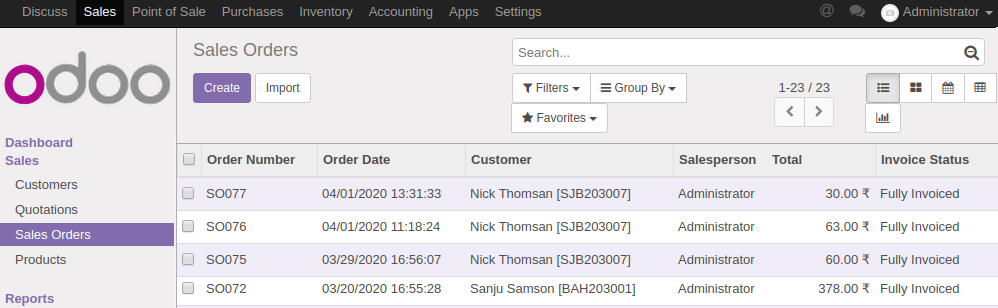
- Search a desired confirmed sale order record and click on the same to view the details.
- If the invoice has already been created for the order, an "Invoices" icon/button will appear in the top right corner of the screen.
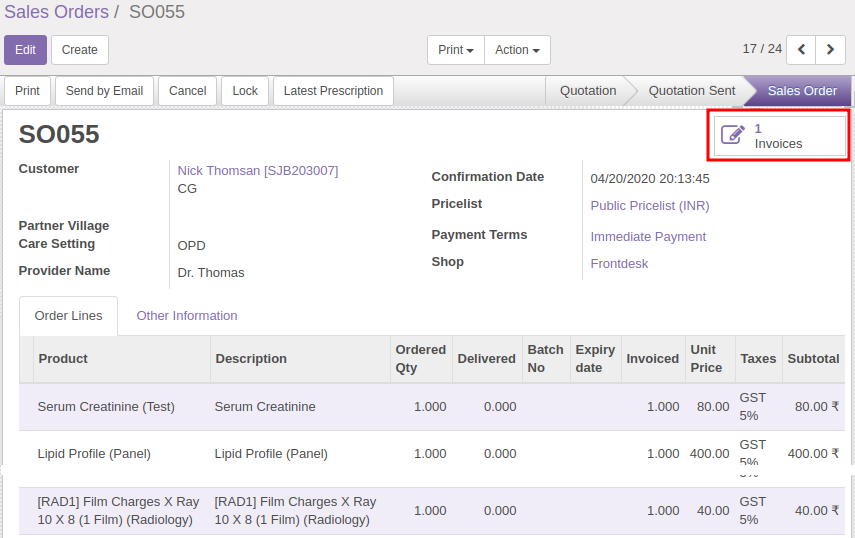
- Click on the "Invoices" icon/button to view the Invoice Details
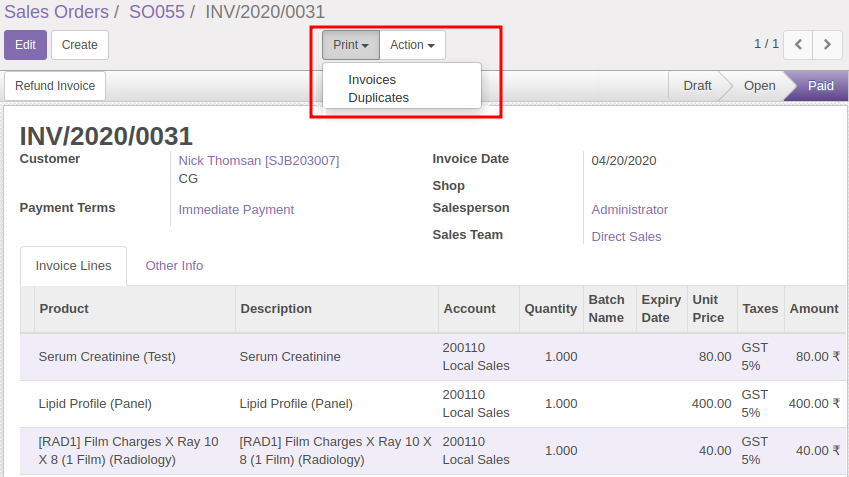
- Now to print the Invoice/Bill, click on "Print" button appearing at the top of the screen and chose "Invoices" option from the drop down.
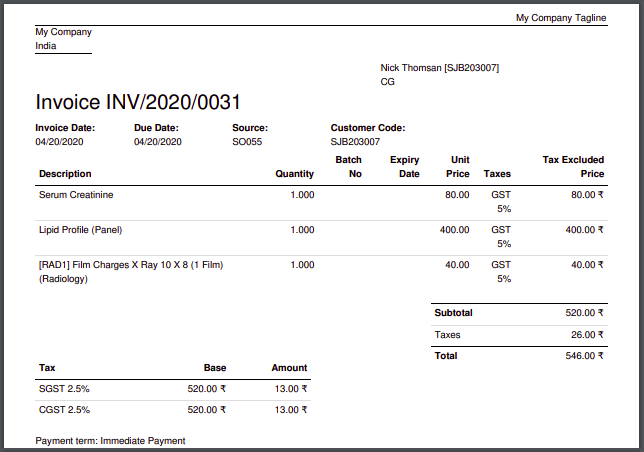
- This will download the Invoice in PDF format as shown in below screenshot.
1. Login to OpenERP application
Click on “Sales” from the top menu. Choose “Quotations” from the left panel.
If the bahmni-erp-connect service is running and the OpenMRS to ERP sync is functional, then the screen will display the patient in the list for whom medications and test were orders as in screenshot below.
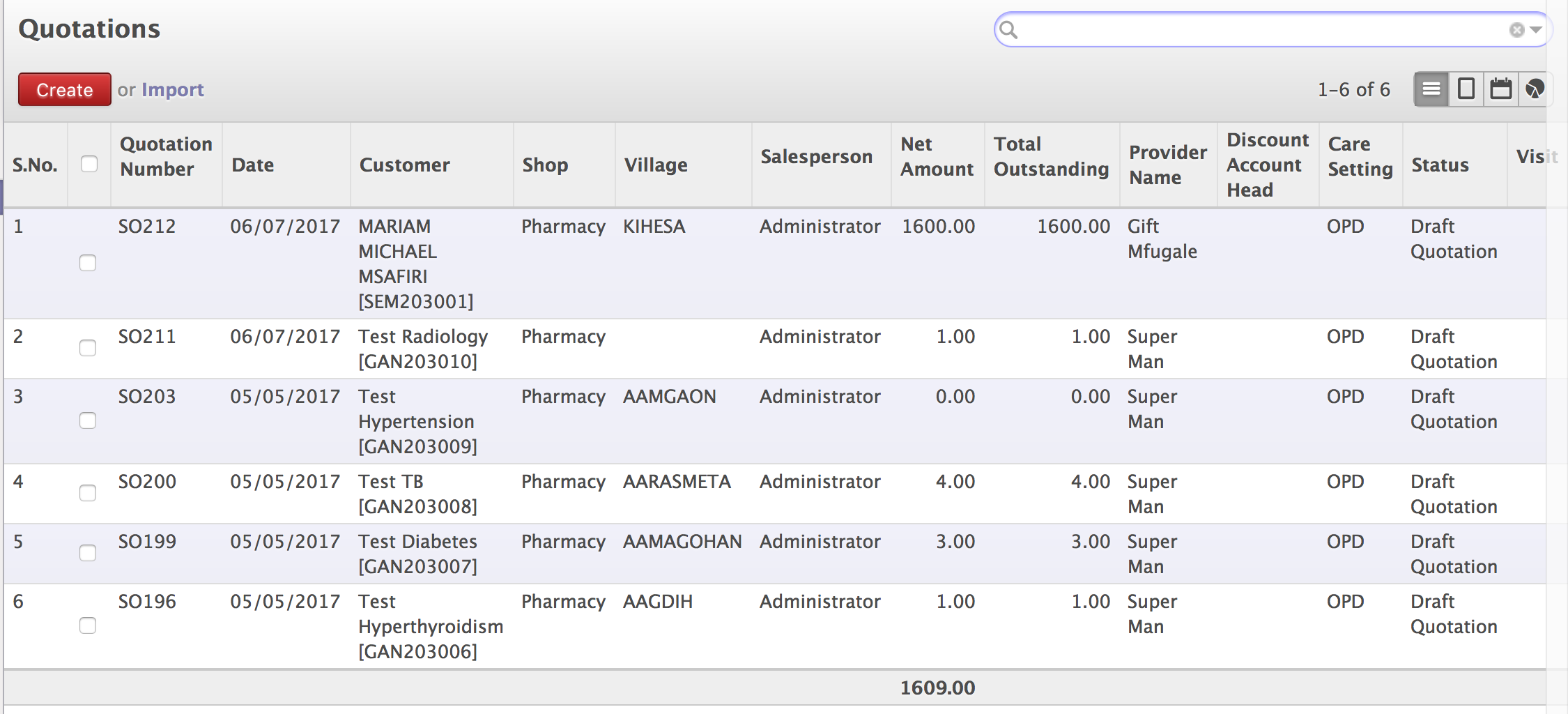
2. Select “Sales Order” from the left panel a display as in screenshot below is presented.
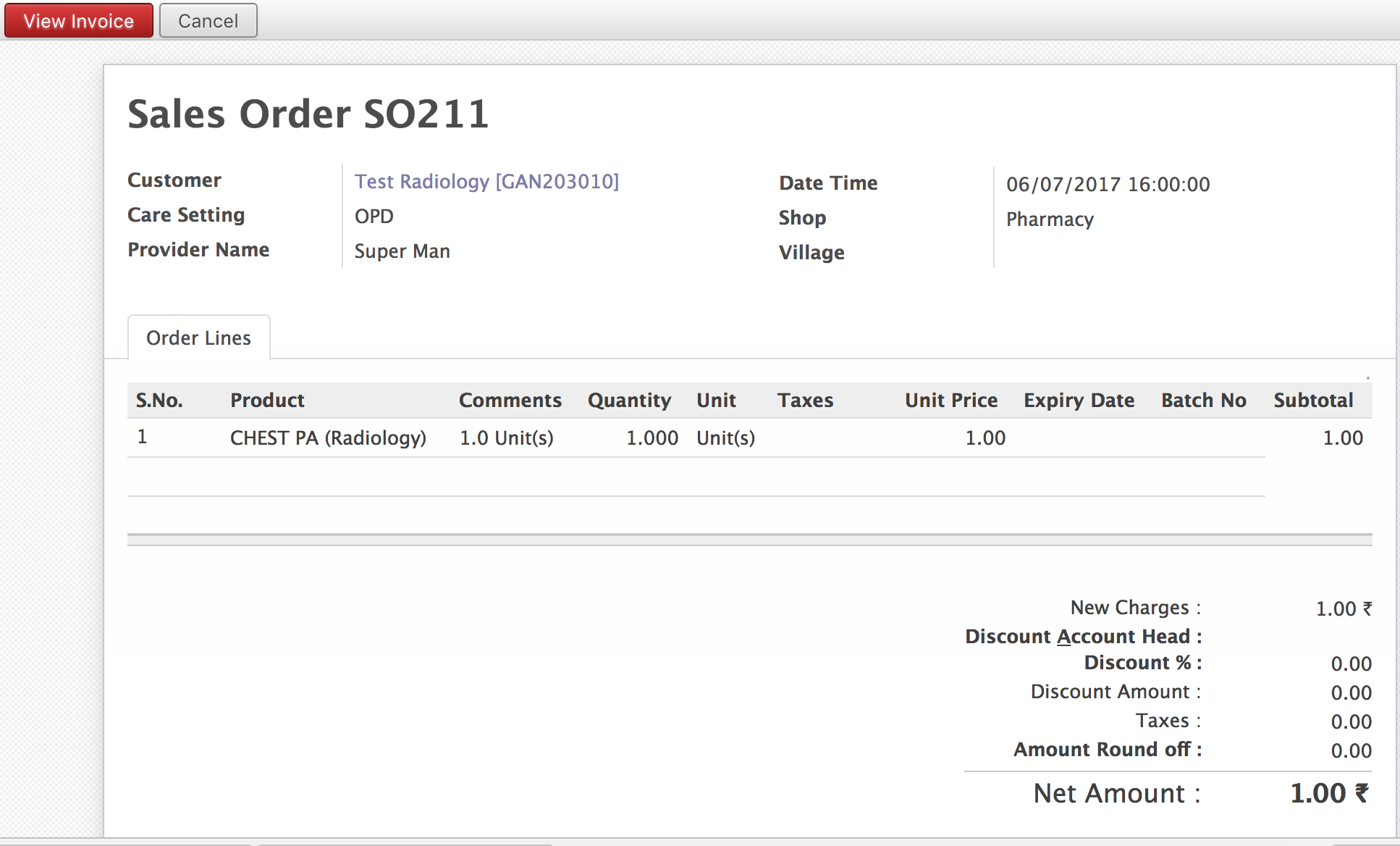
3. Select the patient from the list to “View Invoice”.
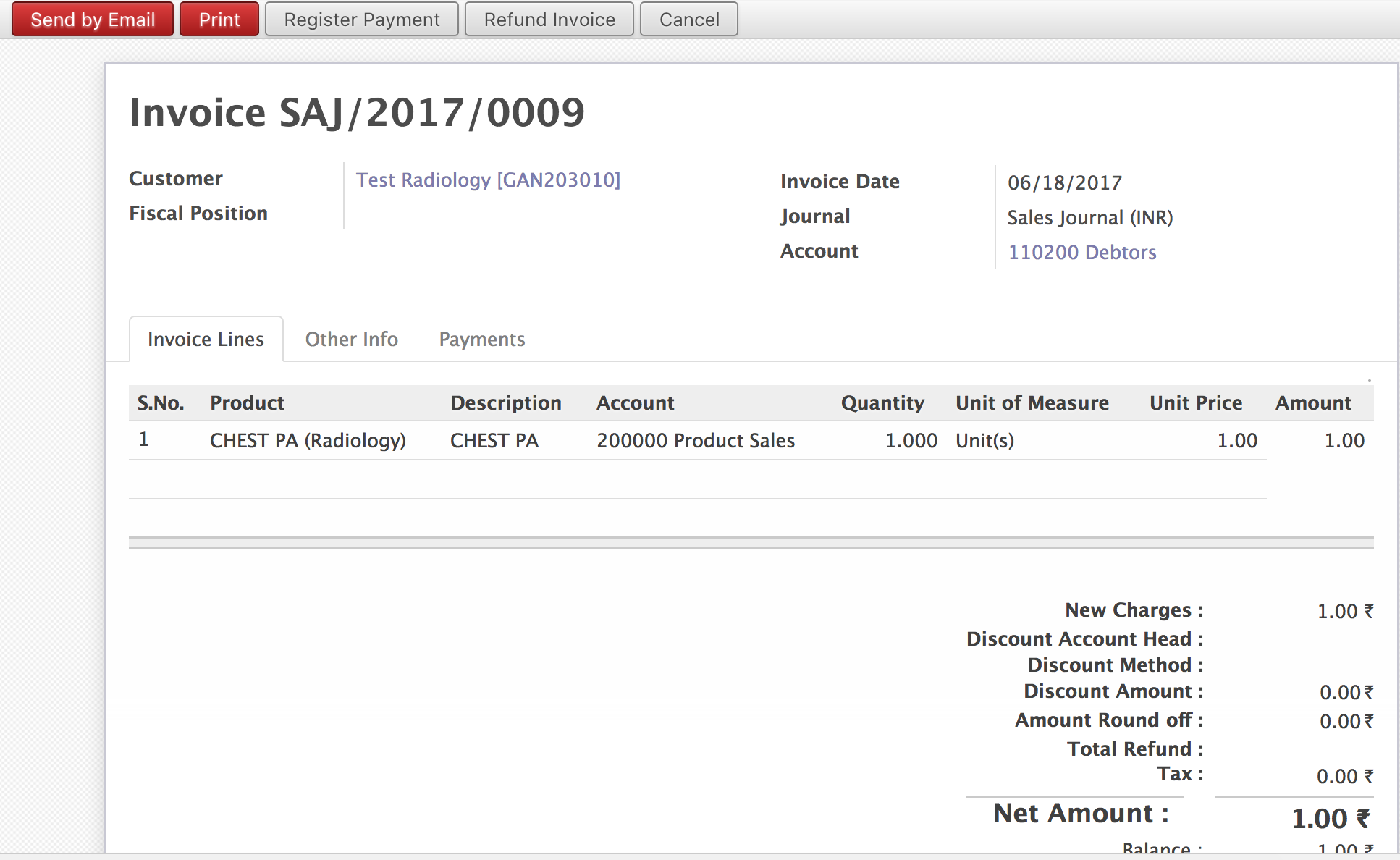
4. From the “View Invoice” screen choose “Print Invoice” to print the bill for the customer.
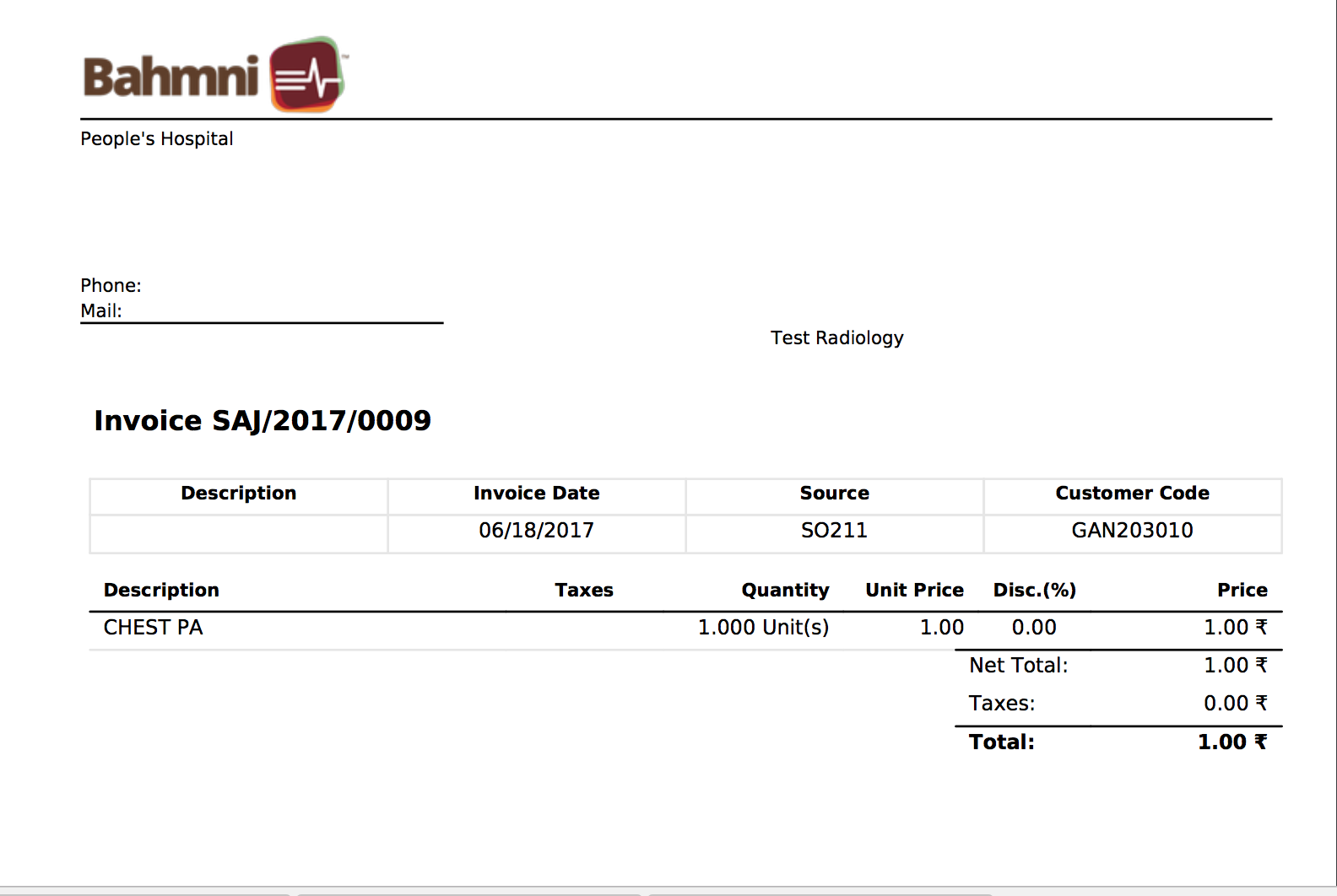
Table of Contents
원문 정보
원문 보기 ↗Bahmni Wiki · CC BY-SA 4.0