SetUp the DCM4CHEE Server
Steps to follow for setup of DCM4CHEE using dmc4chee puppet module:
- Download the following from YumRepo or the actual websites.falseOviyam-2.1-bin.zip dcm4che-2.0.28-bin.zip dcm4chee-2.18.1-psql.zip oviyam2.warinto /packages/buildjboss-4.2.3.GA-jdk6.zip into /packages/servers
- Once downloaded, run the below commandfalsebahmni-environment/scripts/run-puppet-module.sh dcm4chee
Steps to follow for setup of DCM4CHEE manually:
- Download dcm4chee-2.18.1-psql.zip from http://sourceforge.net/projects/dcm4che/files/dcm4chee/2.18.1/
- Once downloaded, extract the distribution package into your desired destination directory. Avoid using a directory path that contains spaces though, as that may cause problems when running the application from the command line.
- Install PostgreSQL , create "pacsdb" database and run the below command falsecreate database pacsdbpsql -Upostgres pacsdb -f dcm4chee-2.18.1-psql/sql/create.psql
- Download jboss-4.2.3.GA-jdk6.zip from http://sourceforge.net/projects/jboss/files/JBoss/JBoss-4.2.3.GA/jboss-4.2.3.GA-jdk6.zip/download and extract it in /usr/share
- Goto dcm4chee extracted directory run the following commandfalsedcm4chee-2.18.1-psql/bin/install_jboss.sh /usr/share/jboss-4.2.3.GA
- Change Port Numbers 8080 to 8001, 8009 to 8010 in dcm4chee-2.18.1-psql/server/default/deploy/jboss-web.deployer/server.xml
- Change the Port Number 1099 to 1100 in dcm4chee-2.18.1-psql/server/default/conf/jboss-service.xml
- Unzip the downloaded Oviyam2 bin zip from http://sourceforge.net/projects/dcm4che/files/Oviyam/2.1/ and run the below commands and Copy the oviyam2.war to dcm4chee-2.18.1-psql/server/default/
- To start the dcm4chee server run dcm4chee-2.18.1-psql/bin/run.sh
- You can access dcm4chee using http://ip-address:8001/dcm4chee-web3/
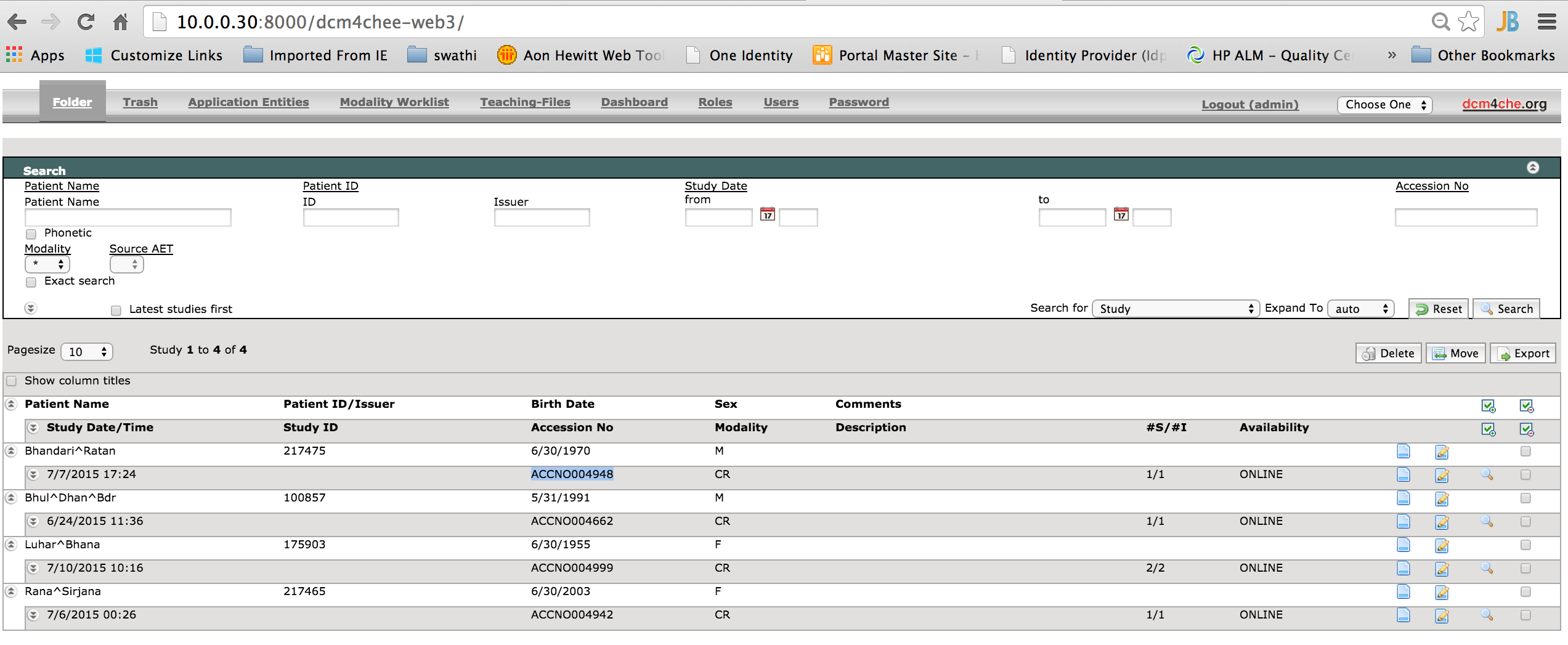
- Use the below command to upload dcm files manually to DCM4CHEE. falsedcmsnd DCM4CHEE@ipaddress:11112 image.dcmSample image : Utilities can be downloaded from https://sourceforge.net/projects/dcm4che/files/dcm4che2/2.0.28/Unzip the dcm4che-2.0.28-bin.zip file
- run the excecutable files with appropriate parameters.
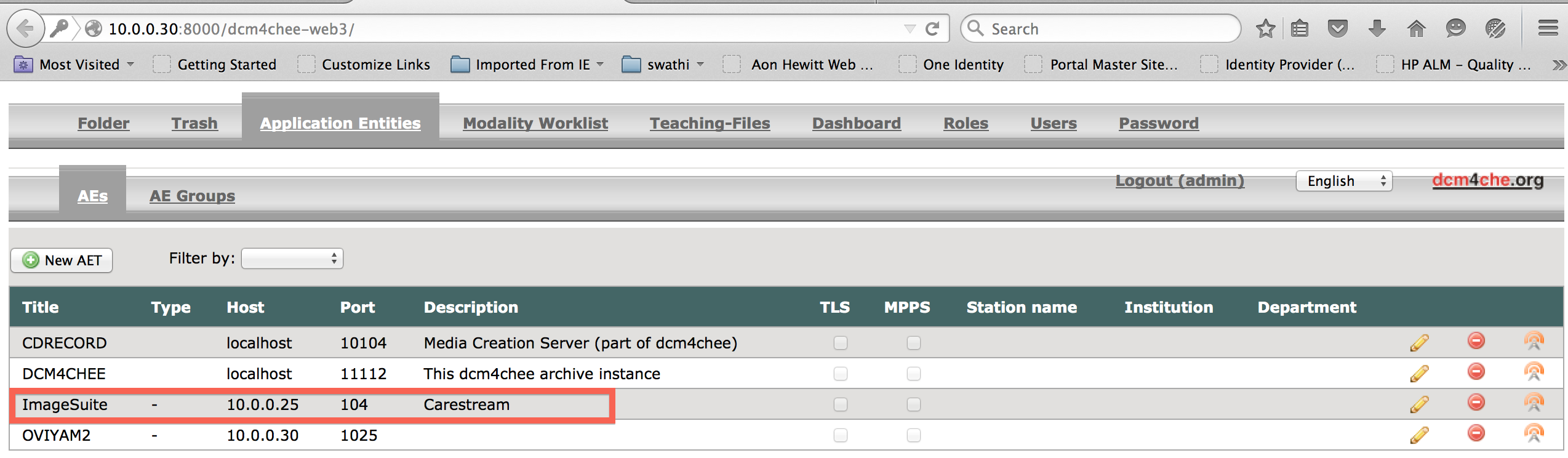
Configure ImageSuite in DCM4CHEE as below
원문 정보
원문 보기 ↗Bahmni Wiki · CC BY-SA 4.0