Order Fulfillment & Procedures
Purpose and Benefits
When a doctor wants an X-ray to be performed for a patient, they would write this order on a physical paper. Then the patient would report to the X-Ray Department where some other provider in the X-Ray department would perform the procedure based on the order of the doctor. The entire process as mentioned above can be digitized through Bahmni which involves two contact points for the providers. One is the part of the application from where orders will be placed and the second is from where the orders will be fulfilled.
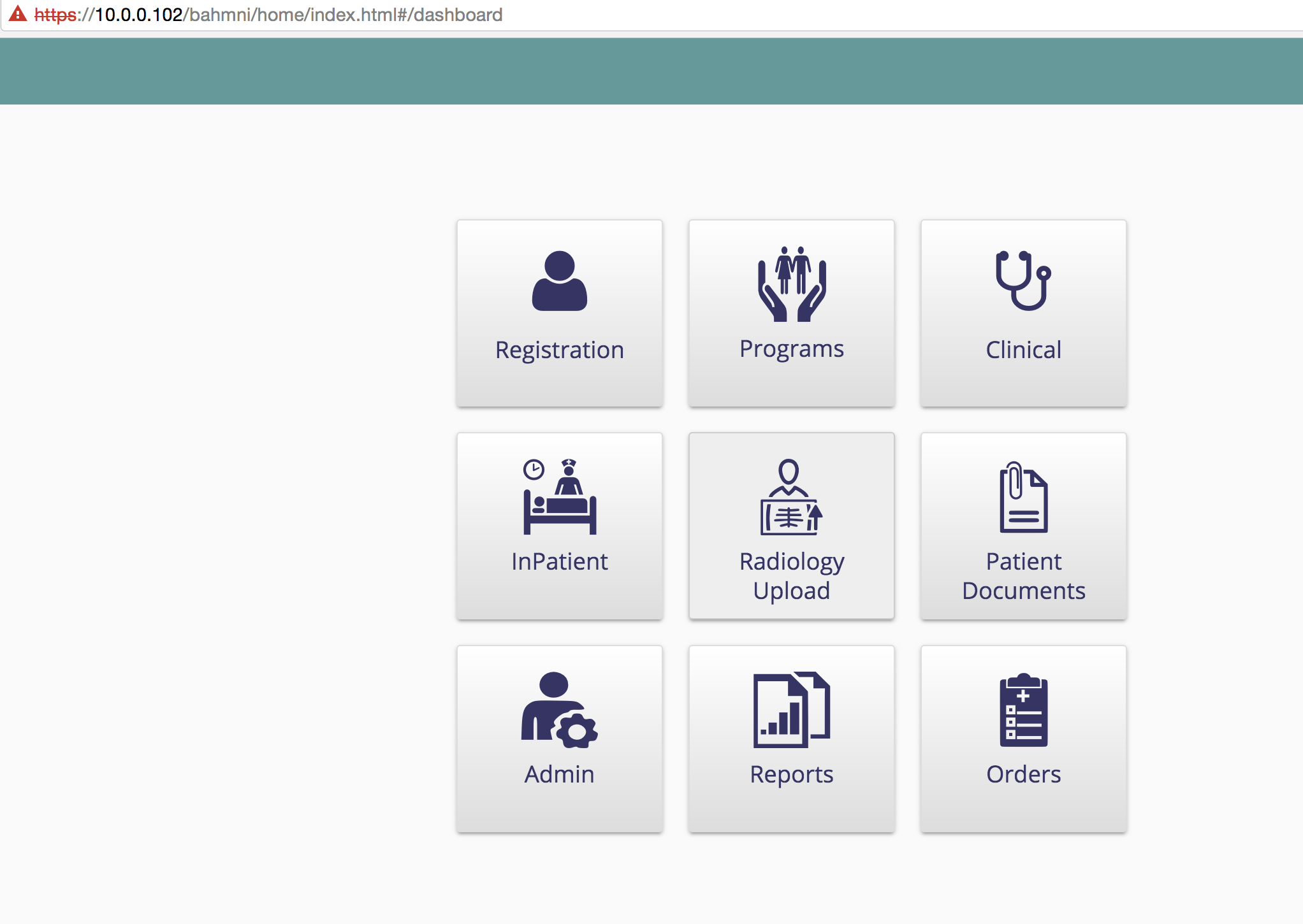
Orders Module
Steps
Placing an order
To place an order, the medical practitioner visits configured "Orders" Tab via Clinical consultation. The Orders Tab can be configured to list all the possible type of orders.
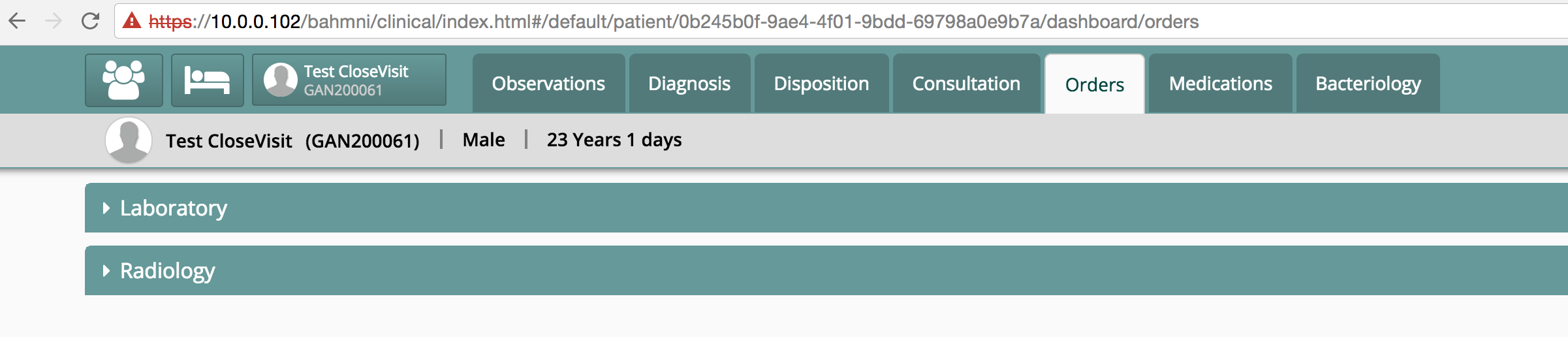
Expanding any of the order type will display all the concepts that are associated to this order type in hierarchical manner.
Select the required orders and then save to place an order.
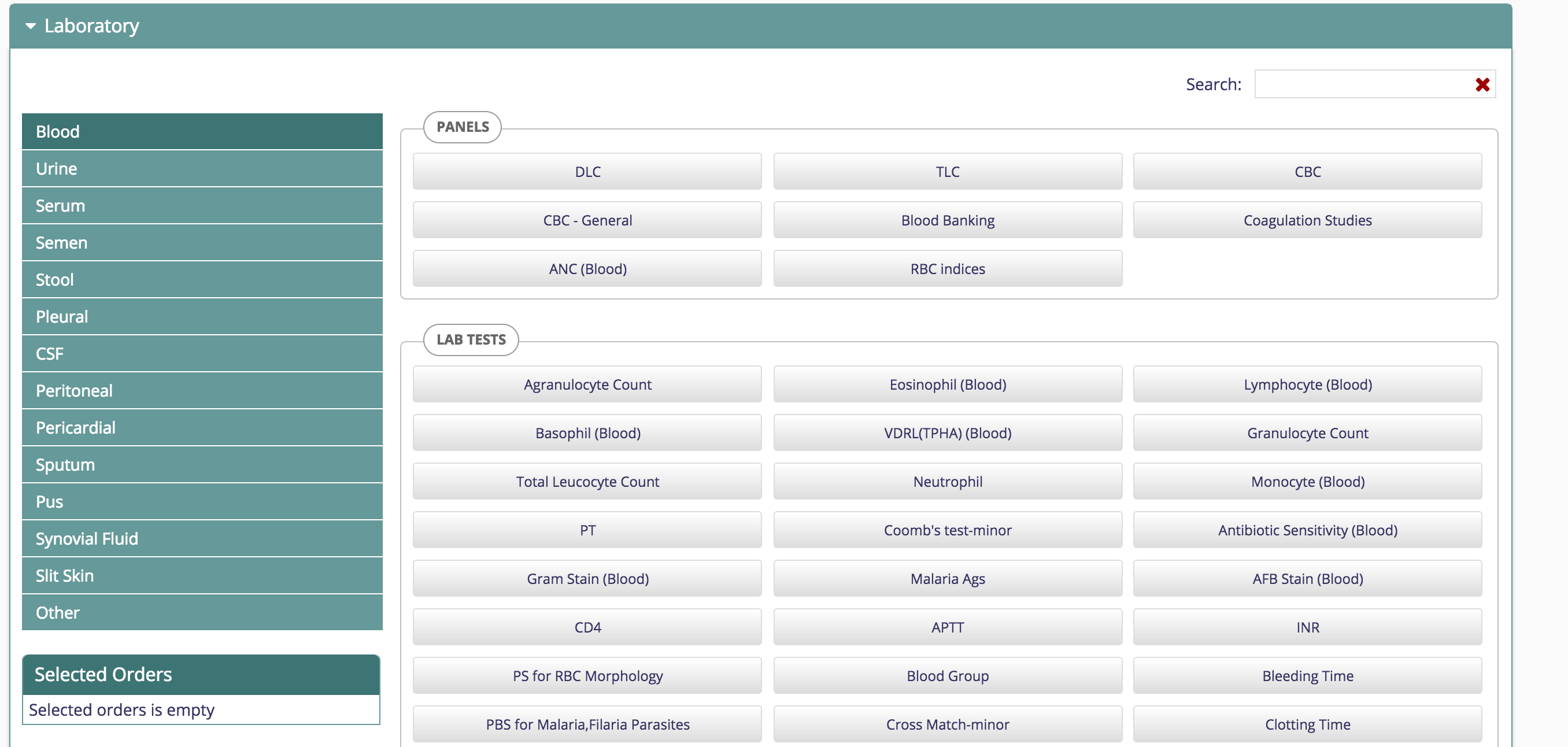
Tests and panels associated to Blood Order Type
Placing an Order
The following is the configuration for the orders scenario.
For setting up the functionality to place the order.
- To set up a new order type, you need to add the order type in the database.sqlOnce you have done the above, you need to setup the "Order type" mapping in the database
sql, );]]>For example, if you are setting up "Procedure" order types, then you should create a mapping of the "Procedure Order Type" and the "Procedure Class" like above.
insert into order_type (name, description, creator, uuid,java_class_name) values ("Test Order", "description",1,uuid(),"org.openmrs.Order");insert into order_type_class_map (order_type_id, concept_class_id) values(<order type id>, <concept class id>); - Every order_type in Bahmni is associated with a Concept Set. This acts as a starting point in navigation of tests during Order Creation. For the newly setup Order Type, create a corresponding Concept Set and associate it as a child of "All Orderables". Associating concept to concept setAdd new concept_set as set member for "All Orderables"The concept set called "All Orderables" is already available in Bahmni.
- The Concept Set that is defined in Step 2 is a Two Level Set. Level 1 shows up the Left Navigation Bar. Level 2 should contain the tests that needs to be shown up on the UI. The doctor can select the provided tests. The grouping of the Tests happen using the "Concept Class". Lets say, if Blood contains both Anaemia Panel (Concept Class as Panel) and "Heamoglobin" (Concept Class as Test), then the grouping of the tests on UI happens based on Panel and Test.
Fulfilling an Order
Order fulfilment is a separate app that can be configured.
Configuring Orders app
In home,extension.json add the following configuration to see orders app on home dashboard.
"orders": {
 "id": "bahmni.orders",
 "extensionPointId": "org.bahmni.home.dashboard",
 "type": "link",
 "label": "Orders",
 "url": "../orders/#/search",
 "icon": "fa-book",
 "order": 10,
 "requiredPrivilege": "app:orders"
}Configuring Patient Queues/Lists
Patient lists can be configured according to the use case and requirement. For instance, one can configure to show all the patients who have Lab Orders. One can choose to configure any number such queues or lists.The view of the queue can be configured to be tile or tabular similar to the patient queues in clinical
{
	"bahmniClinicalPatientsSearchRadiologyOrderAllPatients":{
	 "id": "bahmni.clinical.patients.search.RadiologyOrderAllPatients",
	 "extensionPointId": "org.bahmni.patient.search",
	 "type": "config",
	 "extensionParams": {
	  "searchHandler": "emrapi.sqlSearch.activePatients",
	  "display":"Radiology Orders",
	  "translationKey": "MODULE_LABEL_RADIOLOGY_ORDERS_KEY",
	  "forwardUrl" : "../orders/#/patient/{{patientUuid}}/fulfillment/Radiology Order",
	  "forwardButtonTitle" : "View",
	  "view":"tabular"
	 },
	 "label": "Radiology Order",
	 "order": 1,
	 "requiredPrivilege": "app:orders"
	 }
}
Configuring Fulfilment Form/Template
Provider fulfilling an order will select the order to be fulfilled and fill in the form/template (for that order) Capturing observations for the configured templates or forms is considered as fulfilment of the order. When ever the visit of patient whose order is completed ends then the order will no longer appear in the queue.
Create a concept set (template) in openmrs with required set member. The form is populated based on the set members.
Concept set for Radiology Orders with name "Radiology Order Fulfillment Form"
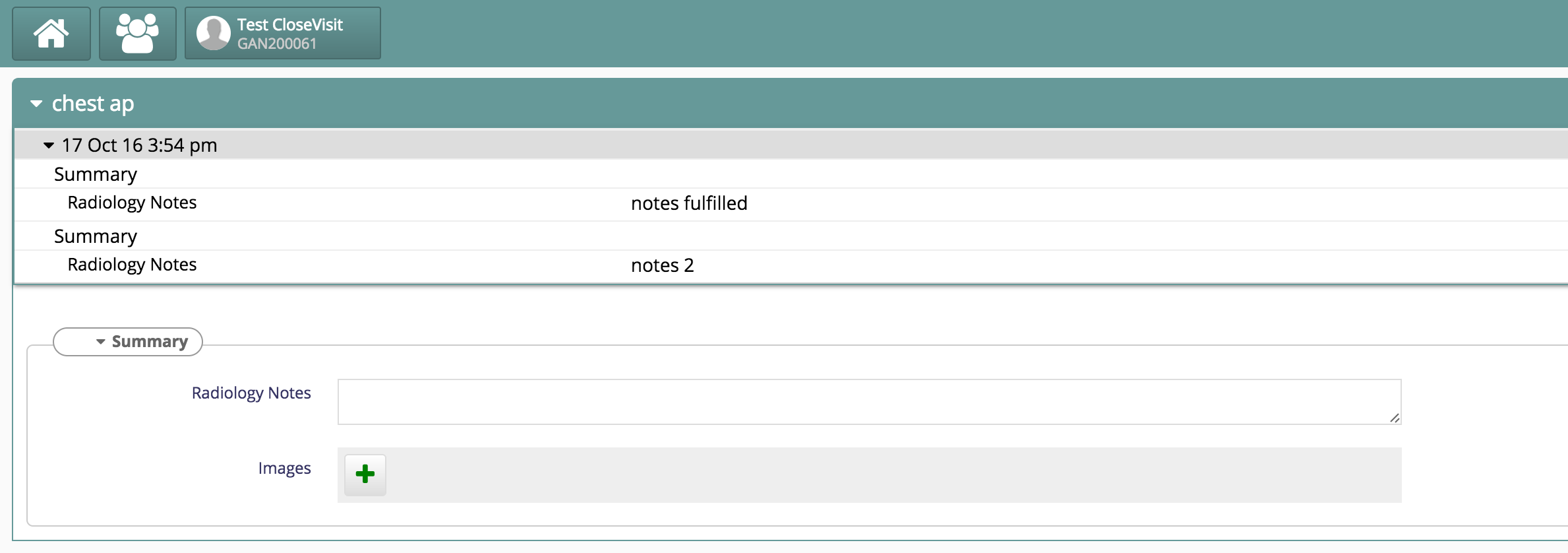
Form populated with "Summary" as it is the set member of "Radiology Order Fulfillment Form"
Setting up Order Display Control
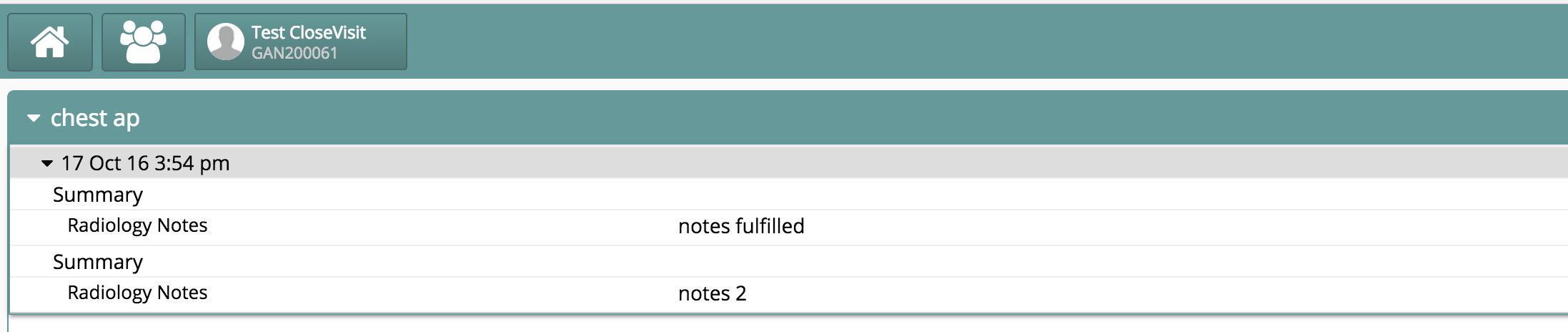
Once a lab technician navigates to order fulfillment page, one can view the orders that are partially/fully fulfilled. If one wants to view the results (observations) that are already entered in previous encounters, one can do so in the "Order Display Control" configured for each and every order.
The following is the configuration for it in orders module's app.json.
[
  {
    "id": "bahmni.orders",
    "extensionPoints": [
		...
    ],
    "config": {
      "fulfillment": {
        "Radiology Order": {
          "isObservation": true,
          "conceptNames": [
            "Summary"
          ],
          "numberOfVisits": 2,
          "scope": "latest"
        }
      }
    }
  }
]
Bahmni Wiki · CC BY-SA 4.0