Config Internationalization
Purpose and Benefits
Multi-Lingual Support (Internationalization) provides a way to make the application available in multiple languages. Internationalization is also referred to as i18n because there are 18 characters between 'i' and 'n' in the word 'internationalization'. Bahmni provides support for internationalization with minimal configuration changes.
Internationalization of the product pages is supported through the app config files. These files can be accessed here.
Steps
Add a locale in OpenMRS: OpenMRS uses a setting called locale.allowed.list to keep track of the list of supported locales. The setting can be changed using the OpenMRS Advanced settings. This setting contains a comma separated list of locales. To add a locale, add it after the last one, and remove any locale that is not supported. Examples of locales are en, es, fr, it, pt, etc.The list of supported locales will then show up as a drop down list on the Bahmni Home page.
To change the locale, select the locale on the Bahmni Home page itself, before logging in.Add files for the locale in default_config:There is a folder called i18n in the openmrs folder inside the bahmni_config folder that contains all the files required for the locale. The directory structure reflects the various modules in the application. Each module has JSON files supporting different locales. For example, the file locale_en.json supports the English language. To add support for the Russian language, add a file named locale_ru.json to all modules.What do the JSON files contain?The JSON files contain a JSON object consisting of key-value pairs. All the keys are internally mapped to the text that is displayed in the module's web page to which the JSON file belongs to.To get started, copy an existing locale file and rename it. For example, copy the locale_en.json file and rename it to locale_ru.json. Then translate the text values in that file and replace them with the text of the locale language.jstrueTo perform complete translation:bahmni_config folder only contains keys for the text that appears inside the bahmni_config folder. Bahmni application by default supports the English locale. It comes bundled with locale_en.json files for all modules. These files contain keys that correspond to the text inside the application. These files can be accessed at https://github.com/Bhamni/default-config/tree/master/openmrs/i18n/clinical. To perform a complete translation, copy all keys corresponding to the module into the locale file and translate all the text values.Download the translated locale files from Transifex:One can download and use default-config locale files that are available in Bahmni project on the Transifex website. One can also contribute to the Bahmni Project on Transifex by translating. For more information on contributing to Bahmni check this Translating Bahmni page.
Add a locale in OpenMRS:
Add files for the locale in default_config:
Download the translated locale files from Transifex:
{
  "MODULE_LABEL_ALL_KEY": "All",
  "MODULE_LABEL_TO_DISCHARGE_KEY": "To Discharge",
  "MODULE_LABEL_ADMITTED_KEY": "Admitted",
  "MODULE_LABEL_TO_ADMIT_KEY": "To Admit",
  "CONSULTATION_PAGE_KEY" :"Consultation",
  "PROGRAM_MANAGEMENT_PAGE_KEY":"Program Management Page",
  "DISCHARGE_SUMMARY_PAGE_KEY":"Discharge Summary Page",
  "PATIENT_ADT_PAGE_KEY":"Patient ADT Page",
  "PATIENT_DASHBOARD_KEY":"Patient Dashboard",
  "PATIENT_VISIT_PAGE_KEY":"Patient Visit Page",
  "HOME_DASHBOARD_KEY":"Home Dashboard",
  "DASHBOARD_TITLE_VITALS_KEY":"Vitals",
  "DASHBOARD_TITLE_PATIENT_INFORMATION_KEY": "Patient Information",
  "DISCHARGE_SUMMARY_ADMISSION_DETAILS_KEY": "Admission Details",
  "DASHBOARD_TITLE_NAVIGATION_LINKS_CONTROL_KEY": "Navigation Links Control",
  "DASHBOARD_TITLE_DIAGNOSIS_KEY": "Diagnosis",
  "DASHBOARD_TITLE_ADMISSION_DETAILS_KEY": "Admission Details",
  "DASHBOARD_TITLE_DISPOSITION_KEY": "Disposition"
}
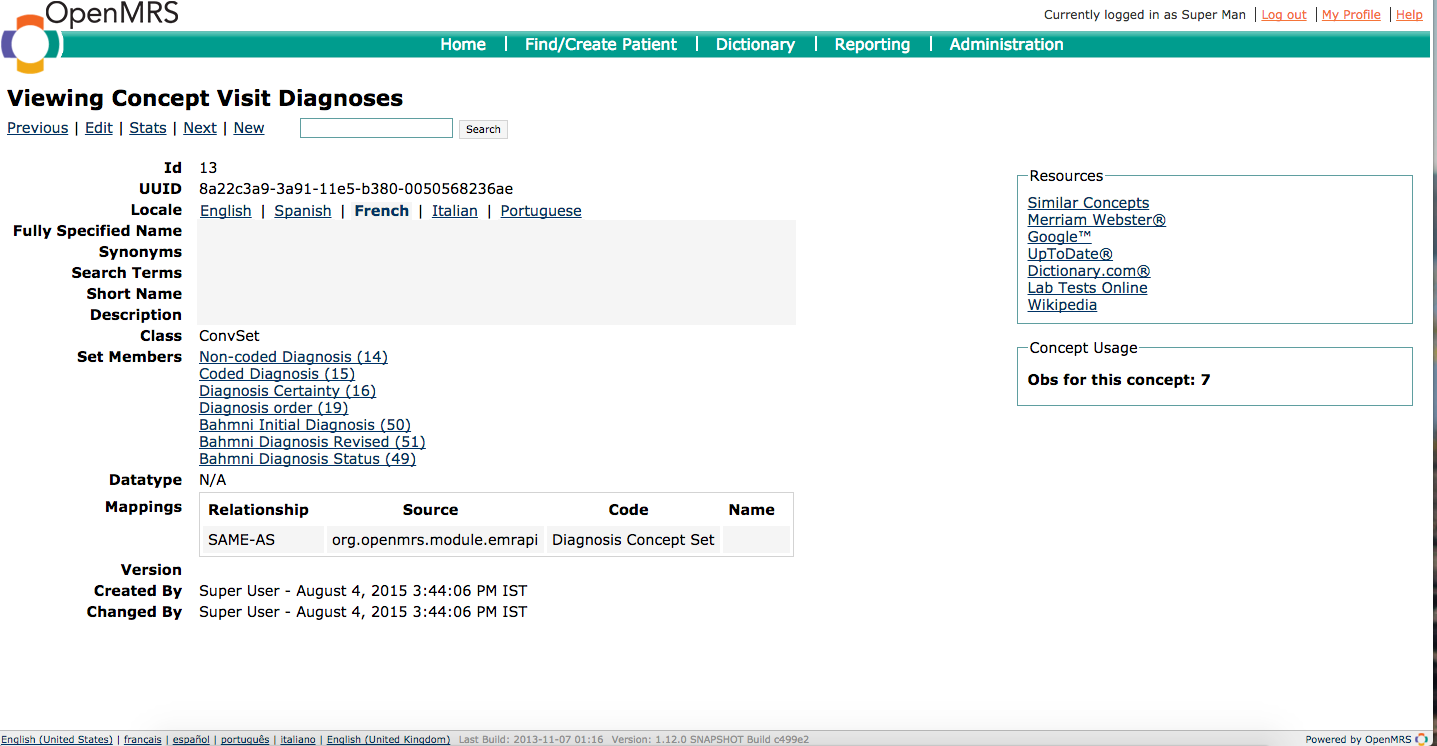
Configure concepts in OpenMRS to support the languageIn OpenMRS, the Short Name of the concepts should be updated for each configured locale, as Bahmni displays the short name in the UI. It can be done in OpenMRS by going to Dictionary --> (search the concept) --> Edit --> Select locale --> (enter short name).
For e.g., If French is configured as a locale, then search for the concepts to be translated, click on edit and add a short name under the French locale.
Please note that the concepts that implementers configure in app.json (like this), should always be in english. The changing of locale should always happen from Bahmni UI (as mentioned in step 1). If you change the language from OpenMRS Legacy UI (the bottom status bar contains various language links), the entire Context is switched to that specific language and the concepts configured will not be found in that locale.
Setup Concept with locale using CSV imports in Bahmni
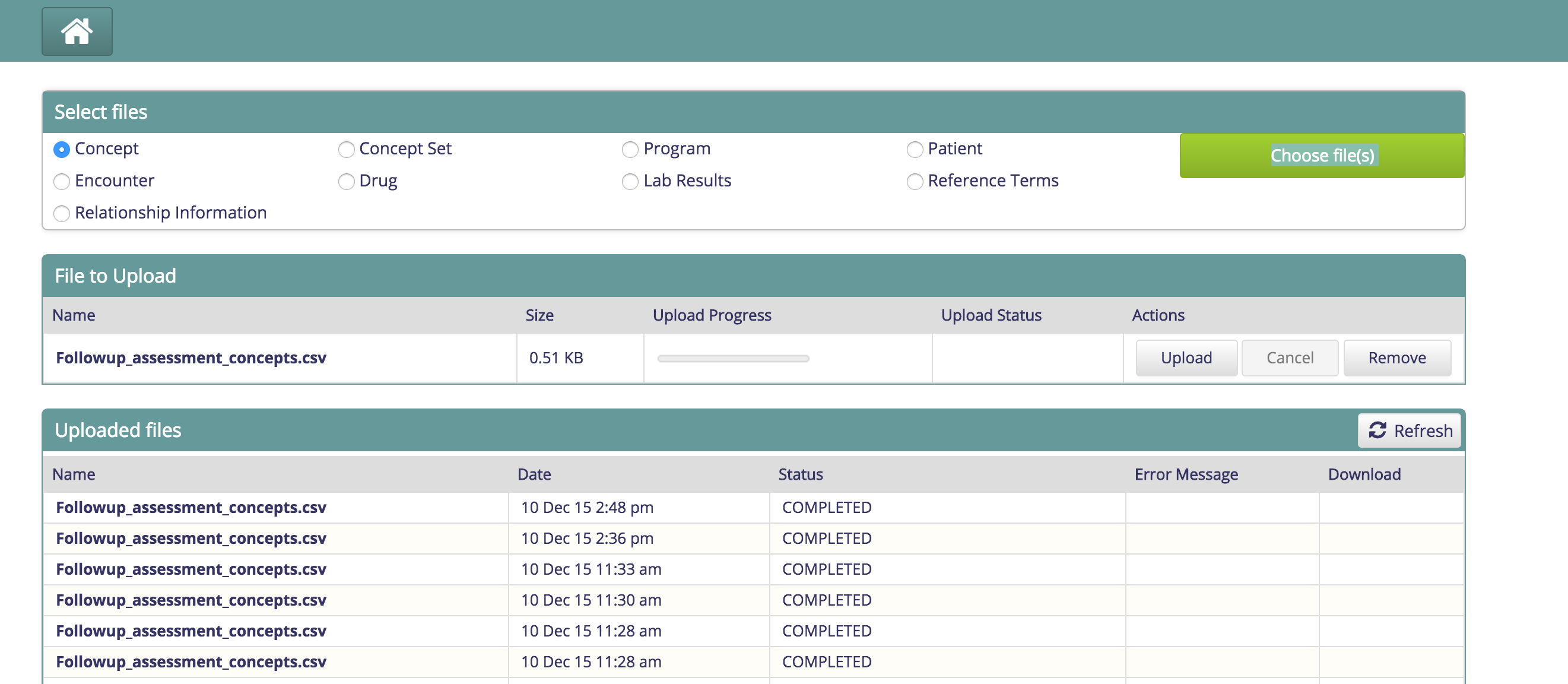
Upload the concept CSV file with locale info for Concepts. The Locale field which is optional, is added after the answer field. If it is not specified, the concept name is set to the default locale, which is English for Bahmni.
Sample file :
There are two types of configurations in Bahmni for translating the keys
- Bahmni UI Attributes: These are the attributes that we use in the bahmniapps code. We hardcoded the translation key in code so that respective value can be configured in the locale files. Eg: The translation key for 'Age' person attribute is REGISTRATION_LABEL_AGE. If we add "REGISTRATION_LABEL_AGE" : "Âge" in french locale file then Âge will show up in the UI.
- Openmrs Metadata: OpenMRS stores metadata information like Person Attributes, Location Names, Address Hierarchy etc. We can store a translation key for this metadata instead of a literal value. And then, configure the key in locale files to show up the value on the UI. For e.g. If we choose to have the Address Hierarchy called "Village", then we can provide a value in the locale file to say "village_locale".
- Following are the steps for Address Hierarchy Level translation:
Go to OpenMRS > Administration > Manage address hierarchy.
Select the Address Hierarchy Level, suppose we want to add a translation for ”Village”, We have given the name “village_locale”.
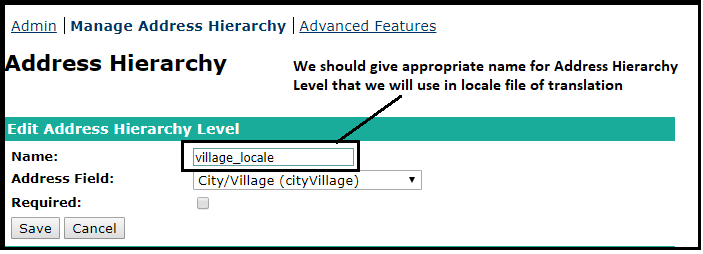
We should add a translation to the local file on this path
하위 문서
Bahmni Wiki · CC BY-SA 4.0