Configuring OpenElis in IntelliJ For Development
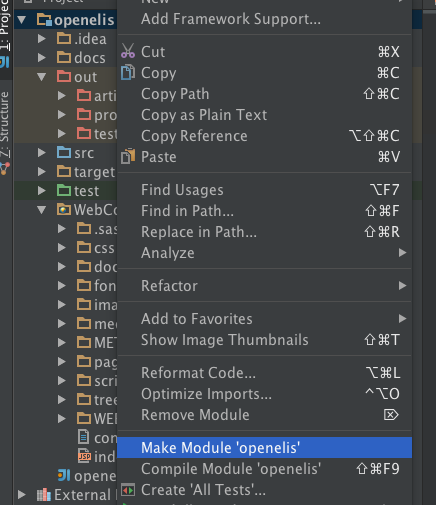
- Go inside /openelis folder and Right Click on /WebContent folder and select Make Module 'openelis' option.
- You need Jetty Server for running OpenElis because it fast and small and very handy with IntelliJ Idea. For installing Jetty Server: Follow the given link and download https://eclipse.org/jetty/downloads.php OR You can use 'brew' to install it brew install jetty
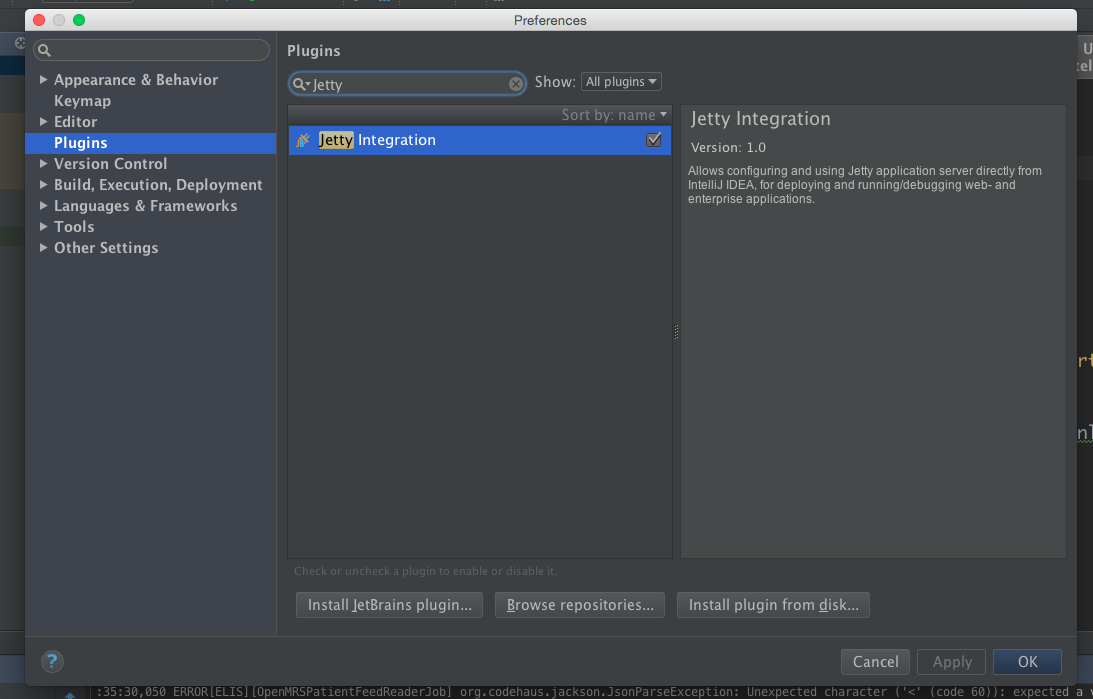
- You need plugin to run Jetty Server. For that follow the given steps:
-Go on IntelliJ IDEA preferences
-Plugins from Left Side Bar
-Search for Jetty plugin
-Enable Jetty Integration and Apply it.
Note: If Jetty will not show in plugins then click Browse repositories... and install plugin from web.
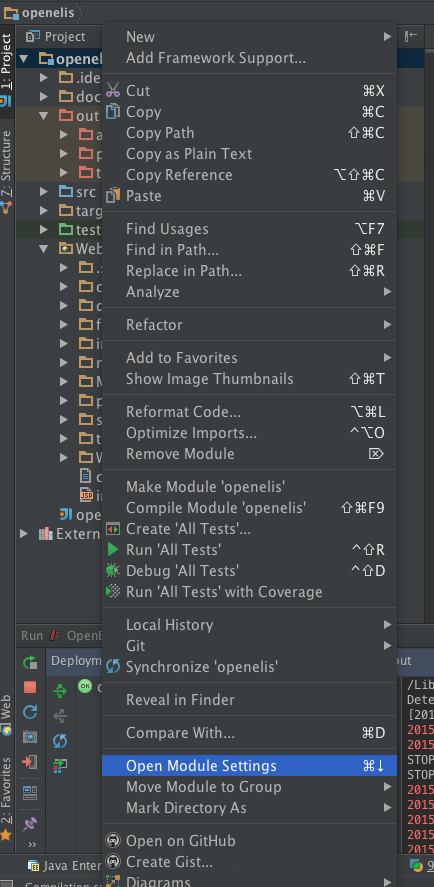
- Now Right click on /openelis folder and go inside 'Open Module Settings' and follow the given steps:
On the left hand side:
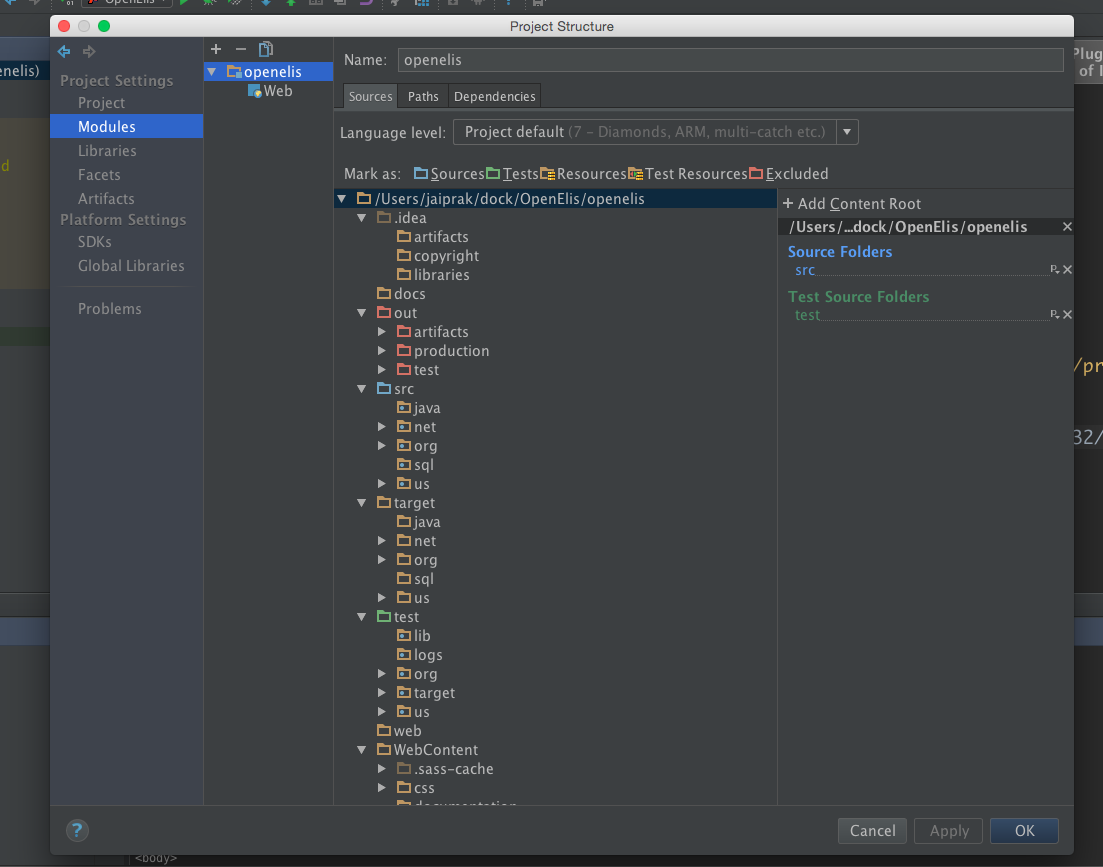
a) select Project-> You will see Project name: openelis
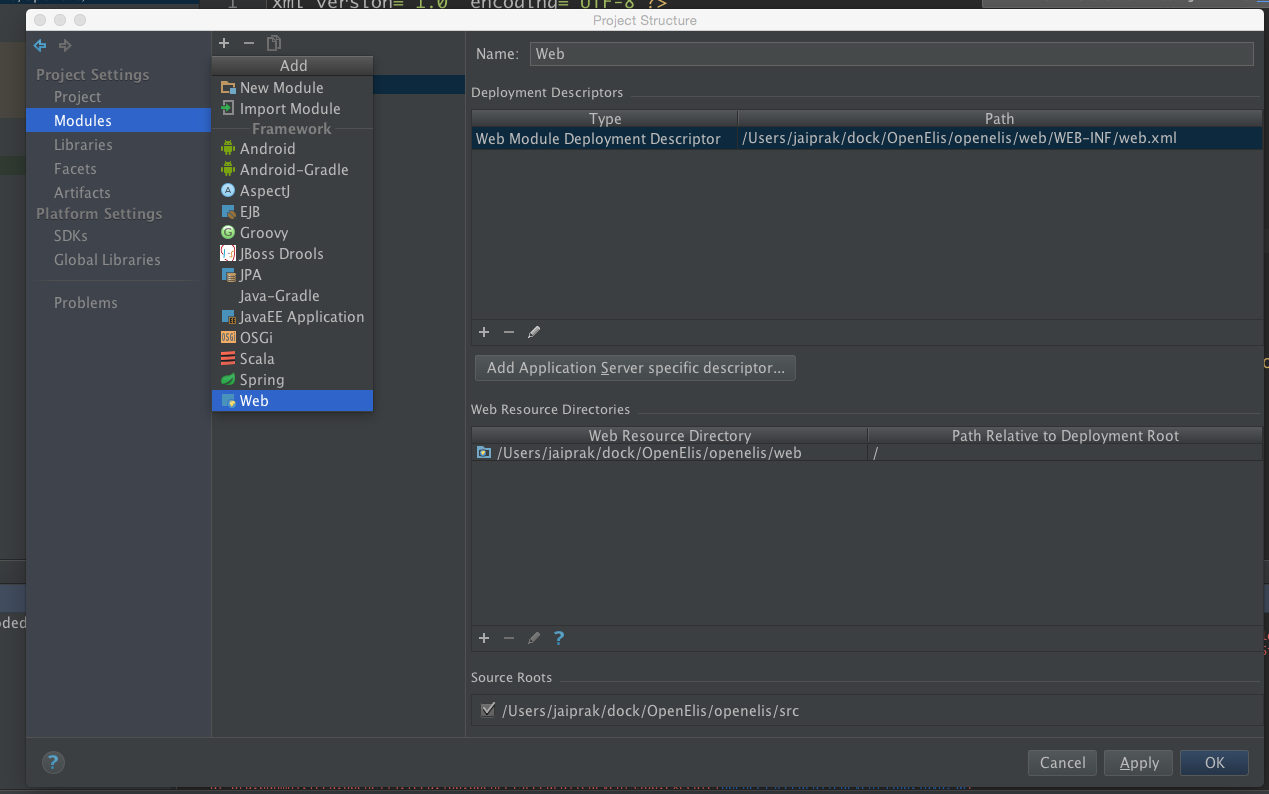
b) select Modules
->click on Add '+' button above the project name 'openelis' with folder icon is showed
->add 'Web' from list of options to 'openelis'
->click on 'Web' the following information you will see:
* In Deployment Descriptors section the path for 'web.xml' is like
/Users/jaiprak/dock/OpenElis/openelis/WebContent/WEB-INF/web.xml
* In Web Resource Directories section the web resource directories path is like
/Users/jaiprak/dock/OpenElis/openelis/WebContent
and Path Relative to deployment Root is '/' only.
* In Source Roots section at the end the checkbox will be enabled for given source like
/Users/jaiprak/dock/OpenElis/openelis/src
->Click openelis
Sources tab -> Under the 'Mark as' section it will show directory structure path of openelis of marked Sources|Tests|Resources etc. like
/Users/jaiprak/dock/OpenElis/openelis
Paths tab -> 'Inherit project compile output path' should be enable so that
Output path: /Users/jaiprak/dock/OpenElis/openelis/out/production/openelis
Test output path: /Users/jaiprak/dock/OpenElis/openelis/out/test/openelis
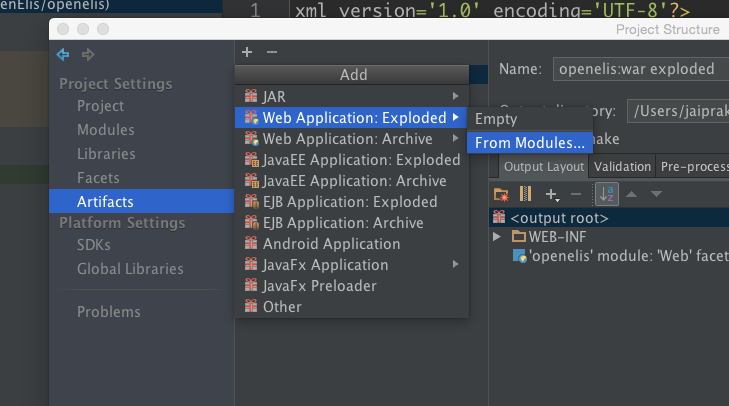
c) select Artifacts
->click Add '+' button on the top
->select Web Aplication: Exploded
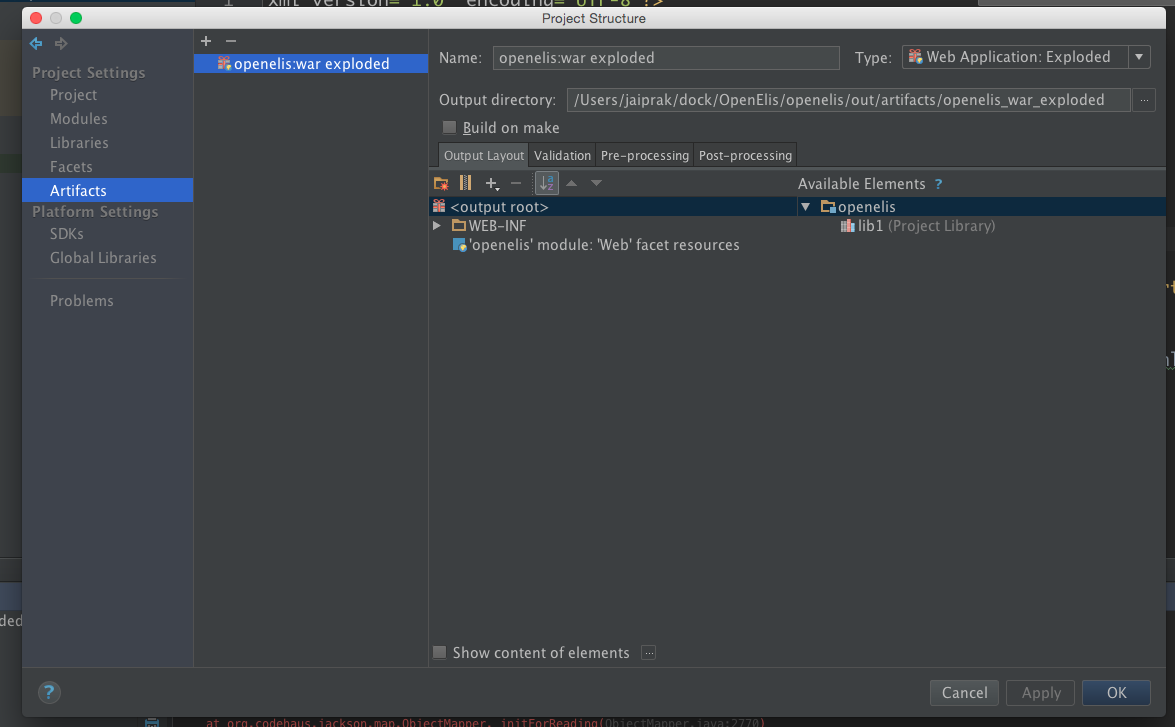
->select From Modules -> select openelis
After that the shown information is like that
Output directory: /Users/jaiprak/dock/OpenElis/openelis/out/artifacts/openelis_Web_exploded
Type: Web Aplication: Exploded
d) select Libraries
-> click Add '+' button-> Java and give library path for test i.e.
/Users/jaiprak/dock/OpenElis/openelis/test/lib
-> click Add '+' button-> Java and give library path for app i.e.
/Users/jaiprak/dock/OpenElis/openelis/WebContent/WEB-INF/lib
-> Give seperate name to them like 'lib' and 'lib2'.
-> We don't need Sources we need only Classes so remove Sources using '-' button at the bottom.
e) select Facets -> Detection -> check Enable framework detection.
- Go on Run menu -> Edit Configurations...
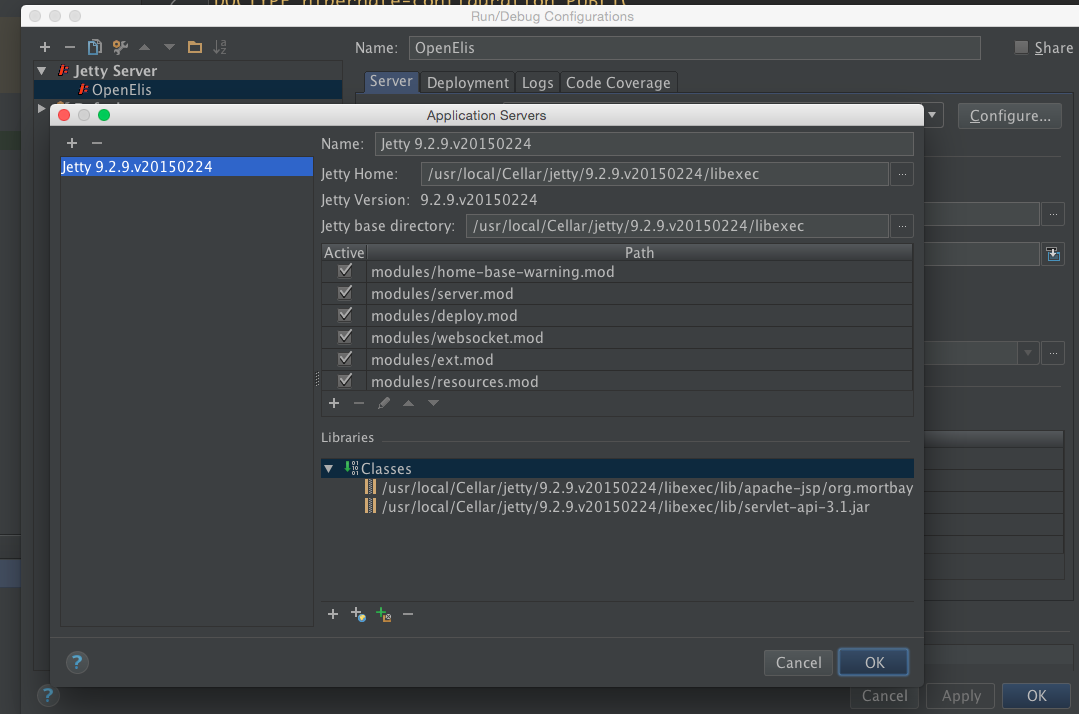
->Select Jetty Server from the left and click Add '+' button on top ->Jetty Server -> Local
->Give the Name : openelis and click Configure.. button in Server tab to configure Application Server as shown in the figure:
-> Set up the local url setting and in Jetty Server Settings section check the modules/jmx.mod
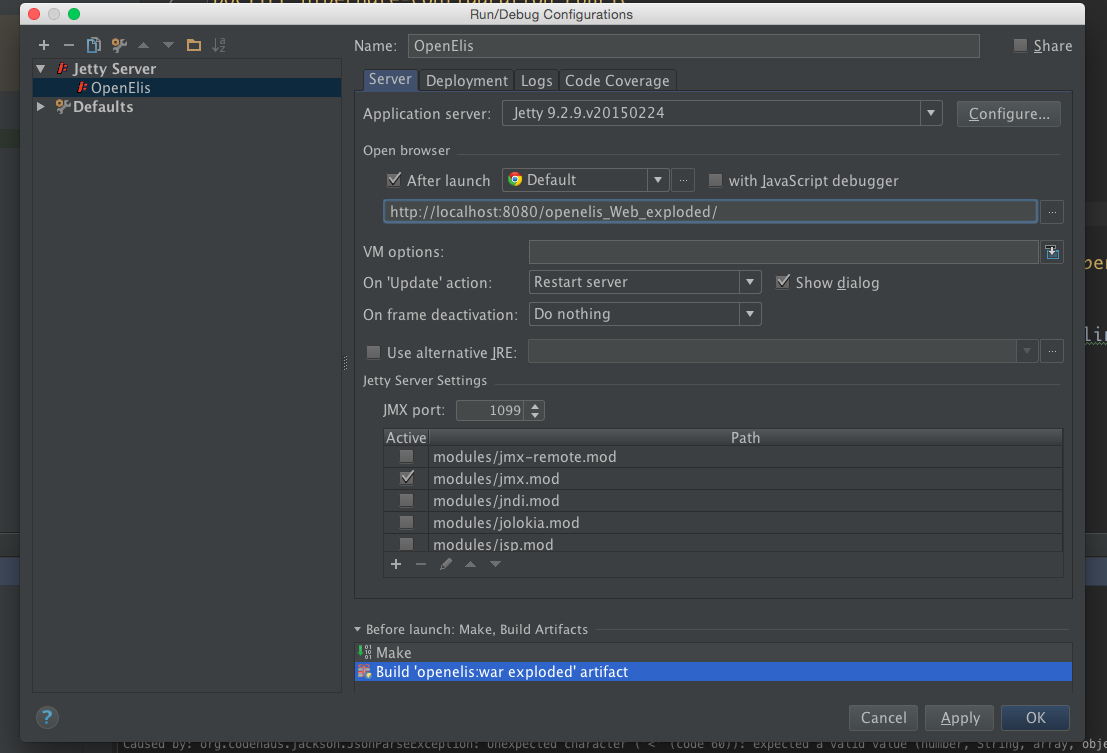
- Now After doing all settings Rebuild the project and Run in.
원문 정보
원문 보기 ↗Bahmni Wiki · CC BY-SA 4.0